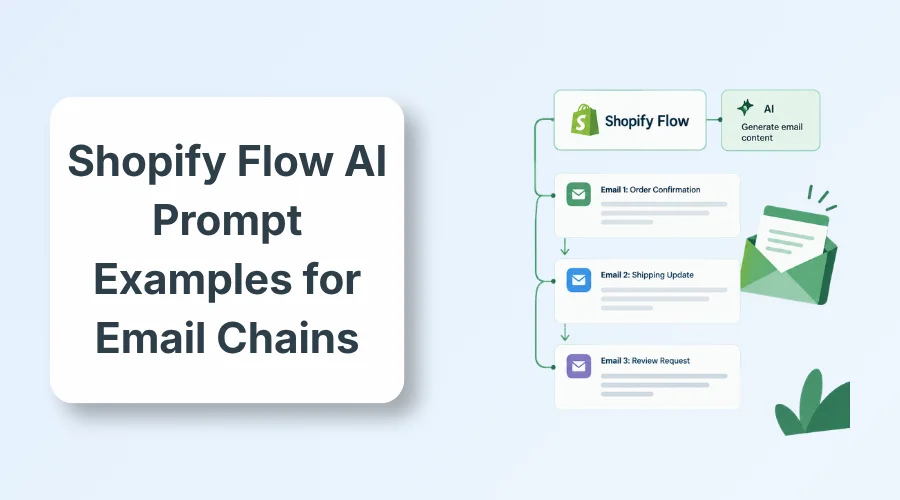
Effective Shopify Flow AI prompt examples for email chains require explicit Shopify triggers, exact numeric wait times, marketing consent verification, and purchase exit conditions. Without these defined constraints, Sidekick drafts broken automations that guess data fields or message-convert buyers.
Many store owners struggle to generate reliable workflows with these Shopify Flow AI prompt examples for email chains. Natural-language requests to Sidekick often produce incomplete workflow blueprints.
The AI regularly omits marketing consent checks, skips delay periods, and references non-existent store tags.
A poorly configured automation misfires instantly. Converted buyers receive irrelevant discount reminders, and unsubscribed contacts receive unwanted marketing.
These errors damage sender reputation, provoke customer complaints, and create severe compliance issues under consumer privacy laws.
This guide delivers the definitive prompt formula, eight tested templates, and strict validation checks to build error-free email chains inside Shopify Flow.
Shopify Flow vs Shopify Messaging: Where Should Email Automation Live?
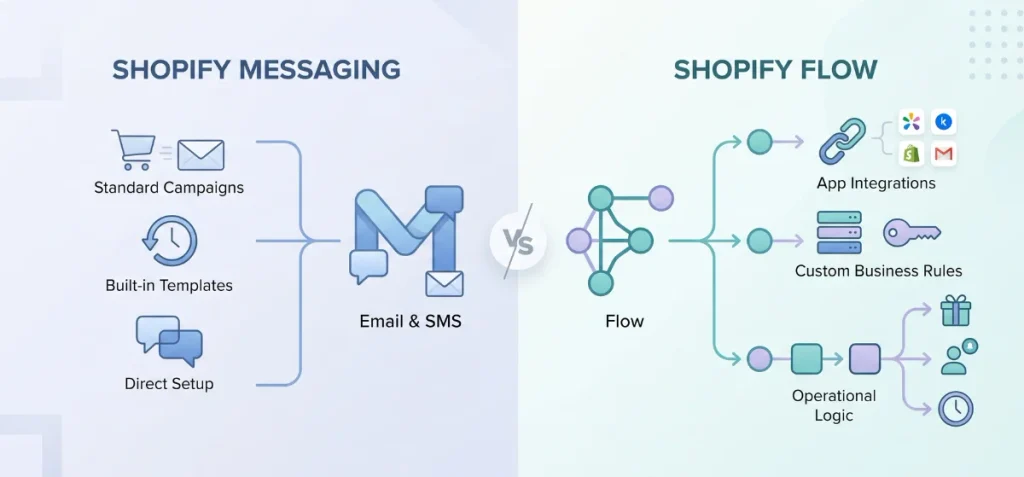
Native marketing emails now belong in Shopify Messaging. Custom logic and app integrations belong in Shopify Flow.
Shopify moved standard lifecycle campaigns out of Flow templates and into Shopify Messaging.
If you want a standard abandoned checkout, browse abandonment, welcome discount, or win-back sequence using Shopify’s built-in templates, build it directly in Shopify Messaging.
This native setup fits store owners who want straightforward Shopify email and SMS marketing without configuring intricate conditional branches.
Choose Shopify Flow when your sequence requires custom business rules:
- You use external email platforms like Klaviyo or Omnisend and need Shopify events to trigger them.
- Your sequence depends on custom metafields, B2B company data, or inventory thresholds.
- You need multi-step operational logic, such as tagging VIP customers, notifying staff, and delaying follow-ups across distinct channels.
Flow handles the logic; your connected messaging tool delivers the email.
How Shopify Flow AI Prompts Work
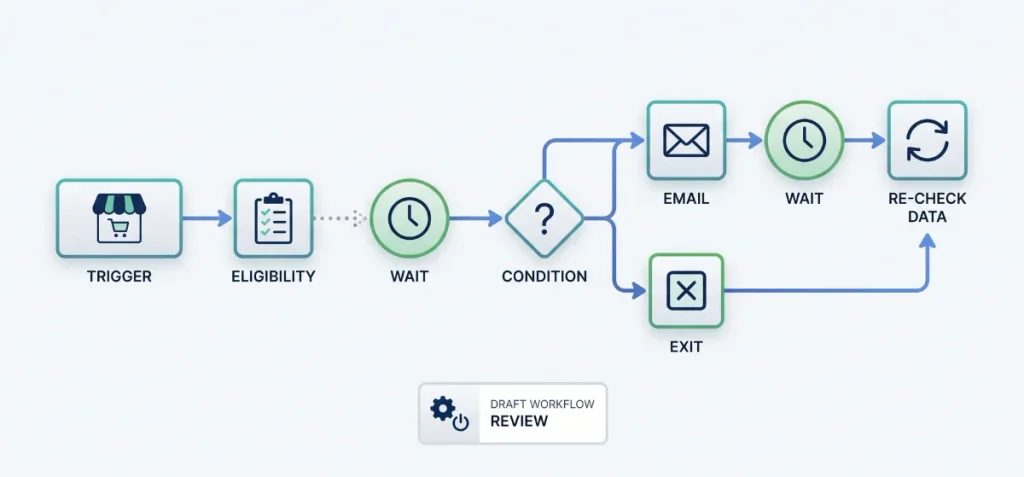
Shopify Flow executes automation through a basic foundation: Trigger, Condition, and Action.
Email chains require a far more defensive sequence:
Trigger → Eligibility → Wait → Condition → Email → Re-check → Wait → Exit
- Trigger: The exact store event that starts the run.
- Eligibility: Customer data checks, such as marketing consent.
- Wait: The precise delay before the next step.
- Condition: The rule that must evaluate as true before a message is sent.
- Email: The message triggered through an app connector or email action.
- Re-check: A fresh evaluation of customer and order data after the wait ends.
- Exit: The rule that halts subsequent steps if the customer has already converted.
According to Shopify’s Wait action documentation, the Wait action pauses execution and refreshes store data once the delay finishes. This re-check prevents your workflow from acting on outdated customer states.
When you prompt Shopify Sidekick, it generates workflows as inactive drafts, following Shopify’s workflow creation guidelines so you can inspect the logic before turning it live.
The Prompt Formula for Reliable Email Chains
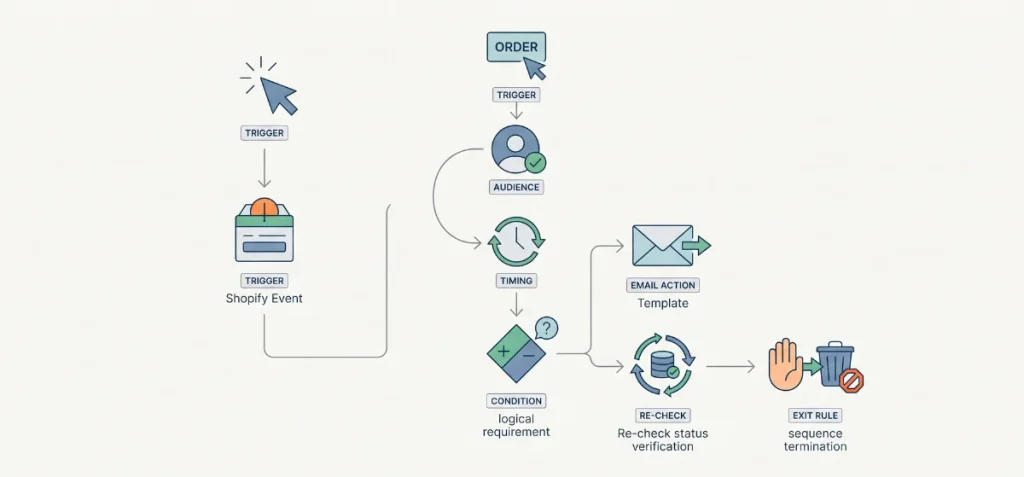
Shopify Sidekick builds dependable workflows when you supply explicit guardrails rather than loose ideas. A complete prompt structure uses seven defined parameters:
- Trigger: The exact Shopify event that starts the run.
- Audience: Customer, order, or product eligibility constraints.
- Timing: Every wait duration is stated in hours or days.
- Condition: The logical requirement that must be evaluated as true before each action.
- Email Action: The specific email template or connected marketing tool.
- Re-check: A repeated verification of customer status before later steps execute.
- Exit Rule: The event or data change that permanently terminates the sequence.
[Trigger]: When [Exact Shopify Event] occurs…
[Audience]: Verify that the customer has [Eligibility Criteria / Marketing Consent]…
[Wait 1]: Wait [Duration]…
[Condition 1]: Check if [Initial Condition is still true]…
[Action 1]: Trigger [Specific Email Action / Connected App Event]…
[Wait 2]: Wait [Duration]…
[Re-check]: Check if [Purchase Status or Conversion has NOT occurred]…
[Action 2]: Trigger [Follow-up Email Action]…
[Exit Rule]: Stop the sequence immediately if [Customer Purchases / Unsubscribes].
Consider how this structure transforms output quality:
- Weak prompt: “Create an abandoned cart email sequence.”
- Reliable prompt: “Start when a customer abandons checkout. Wait 2 hours. If the customer is subscribed to email marketing and has placed no orders since checkout creation, trigger Abandoned Email 1. Wait 24 hours.
Check again if the customer has placed an order. If no order exists and marketing consent remains active, trigger Abandoned Email 2. Stop immediately if an order is created.”
The second prompt gives Sidekick no room to guess data fields. It aligns directly with Shopify’s conditions documentation, ensuring each logical branch checks valid store properties rather than hallucinated criteria.
When your sequences direct traffic back to your store, remember to track email campaign links with UTMs so you can verify conversion data in your analytics.
Copy-and-Paste Shopify Flow AI Prompt Examples for Email Chains
Here are eight production-ready prompts designed for Shopify Sidekick.
Each prompt specifies exact event triggers, delay periods, re-check logic, and exit conditions.
1. Abandoned Checkout Recovery
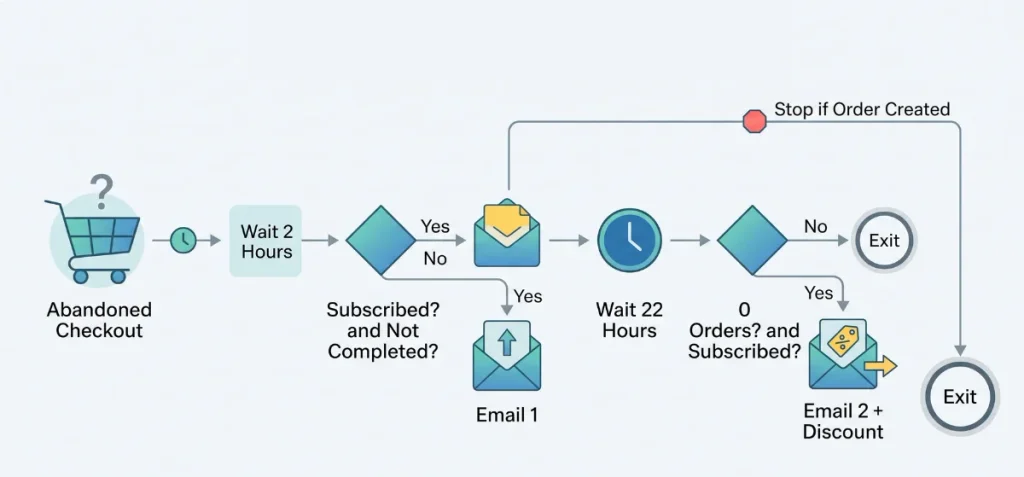
Use case: Recover abandoned revenue without sending messages to shoppers who already completed their purchase or opted out of marketing.
Prompt:
Create a Shopify Flow workflow.
Trigger: Customer abandons checkout.
Step 1: Wait 2 hours.
Step 2: Check if the customer’s email marketing state equals SUBSCRIBED and checkout completed is false.
Step 3: If true, send the marketing email template “checkout-recovery-1”.
Step 4: Wait 22 hours.
Step 5: Check if the customer has placed zero orders since checkout creation and the email marketing state equals SUBSCRIBED.
Step 6: If true, send the marketing email template “checkout-recovery-2” including the merchant discount code [YOUR_DISCOUNT_CODE].
Exit Rule: Stop the workflow immediately if an order is created by this customer.
Flow logic: Customer abandons checkout → Wait 2h → Condition: SUBSCRIBED and not completed → Email 1 → Wait 22h → Re-check: 0 orders and SUBSCRIBED → Email 2 → Exit.
Why the prompt works: It isolates the Customer abandons checkout trigger and forces an explicit data re-check before the second send, ensuring no discounts reach buyers who converted after email one.
2. Welcome Email Series
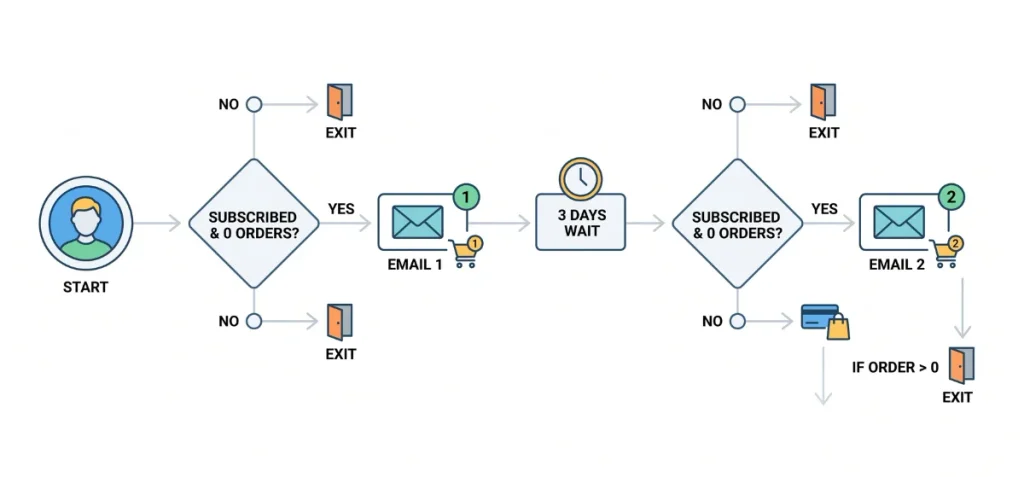
Use case: Introduce new subscribers to brand benefits and encourage a first purchase while respecting subscription states.
Prompt:
Create a Shopify Flow workflow.
Trigger: Customer created.
Step 1: Check if the customer email marketing state equals SUBSCRIBED and the customer order count equals 0.
Step 2: If true, send the marketing email template “welcome-series-1”.
Step 3: Wait 3 days.
Step 4: Check if the customer email marketing state equals SUBSCRIBED and the customer order count equals 0.
Step 5: If true, send the marketing email template “welcome-series-2”.
Exit Rule: If the customer order count is greater than 0 at any point, stop sending subsequent welcome emails.
Flow logic: Customer created → Condition: SUBSCRIBED and orders = 0 → Email 1 → Wait 3d → Re-check: SUBSCRIBED and orders = 0 → Email 2 → Exit.
Why the prompt works: It prevents awkward onboarding emails from reaching new subscribers who bought immediately upon visiting your site.
3. Post-Purchase Thank You and Review Request
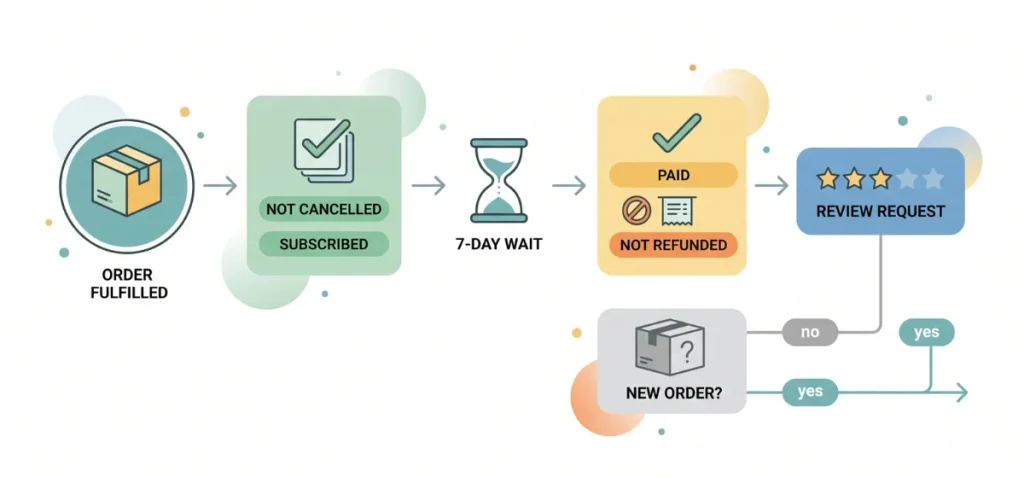
Use case: Collect product reviews after orders arrive without spamming customers who receive split-package shipments.
Prompt:
Create a Shopify Flow workflow.
Trigger: Order fulfilled.
Step 1: Check if the order cancellation status is not CANCELLED and the customer email marketing state equals SUBSCRIBED.
Step 2: Wait 7 days.
Step 3: Check if the order financial status equals PAID and no refund has been created.
Step 4: If true, trigger an external app action to send “Product Review Request.”
Step 5: Wait 7 days.
Step 6: Check if a new order was placed by this customer. If no new order was placed, send the marketing email template “customer-care-checking.”
Exit Rule: Stop the remaining sequence if the customer submits a support ticket or initiates a return.
Flow logic: Order fulfilled → Condition: Not cancelled and SUBSCRIBED → Wait 7d → Condition: Paid and not refunded → Review Request → Wait 7d → Re-check: No new order → Email 2.
Why the prompt works: Shopify documents Order fulfilled as a trigger that can fire multiple times for partial shipments.
Waiting seven days after fulfillment gives the parcel adequate transit time, while the refund condition prevents review requests to dissatisfied customers.
4. First-to-Second Purchase Cross-Sell
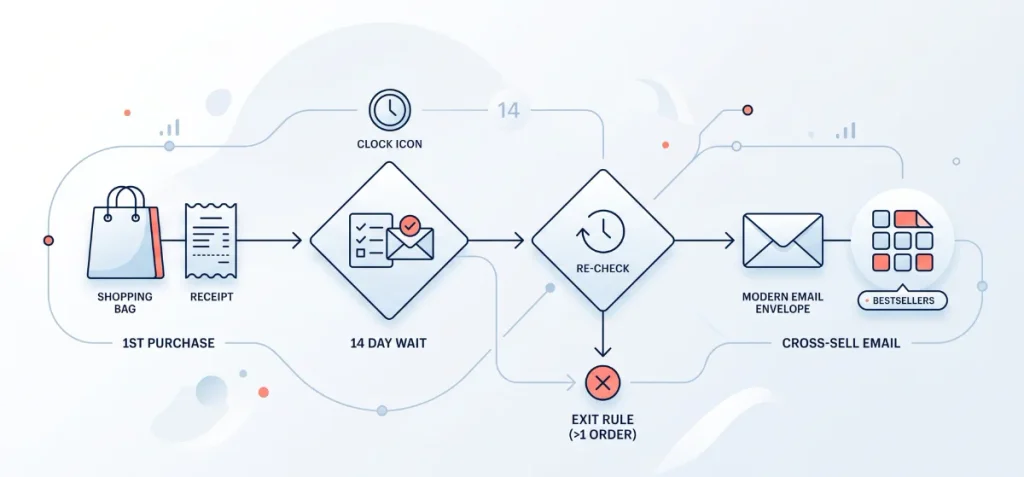
Use case: Convert one-time shoppers into repeat buyers with complementary product recommendations 14 days after their initial transaction.
Prompt:
Create a Shopify Flow workflow.
Trigger: Order created.
Step 1: Check if the customer order count equals 1 and the customer email marketing state equals SUBSCRIBED.
Step 2: Wait 14 days.
Step 3: Check if the customer order count still equals 1 and the order financial status equals PAID.
Step 4: If true, send the marketing email template “cross-sell-collection” referencing the product collection handle “bestsellers.”
Exit Rule: Terminate sequence if customer order count becomes greater than 1 during the wait period.
Flow logic: Order created → Condition: orders count = 1 and SUBSCRIBED → Wait 14d → Re-check: orders count = 1 → Cross-sell Email → Exit.
Why the prompt works: Sidekick cannot guess which products pair together unless you define a concrete collection handle. Pointing directly to a designated collection prevents broken dynamic product placeholders.
5. Win-Back Sequence
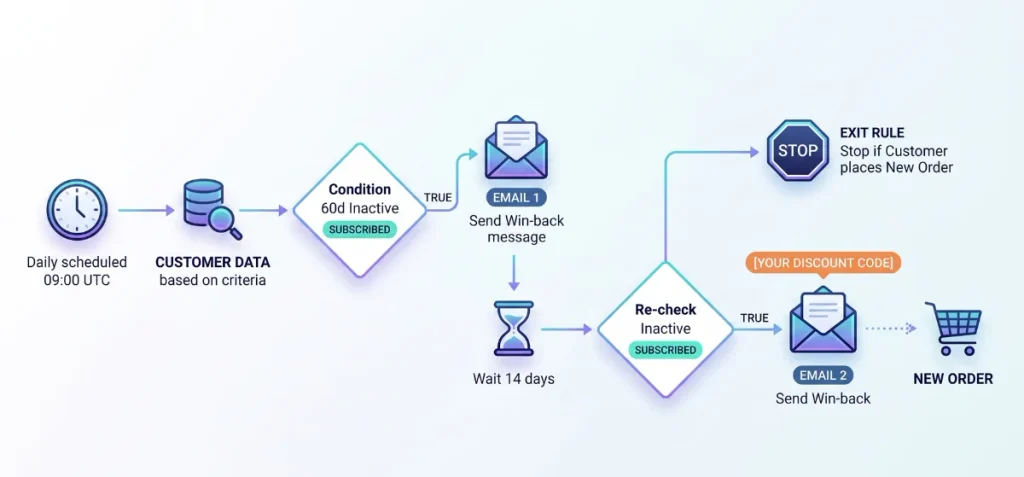
Use case: Re-engage inactive buyers who have not returned to the store within a multi-month window.
Prompt:
Create a Shopify Flow workflow.
Trigger: Scheduled time trigger, running daily at 09:00 UTC.
Step 1: Get customer data where customer orders count is greater than 0 and customer days since last order equals 60.
Step 2: Check if the customer email marketing state equals SUBSCRIBED.
Step 3: If true, send the marketing email template “win-back-message-1.”
Step 4: Wait 14 days.
Step 5: Check if the customer’s days since last order is greater than 73 and the customer email marketing state equals SUBSCRIBED.
Step 6: If true, send the marketing email template “win-back-message-2” with incentive [YOUR_DISCOUNT_CODE].
Exit Rule: Stop if the customer creates a new order.
Flow logic: Scheduled time (Daily) → Query customer data → Condition: Inactive 60d and SUBSCRIBED → Email 1 → Wait 14d → Re-check: Inactive and SUBSCRIBED → Email 2 → Exit.
Why the prompt works: Win-back sequences require the Scheduled time trigger rather than standard event triggers. This query checks store data periodically instead of listening for a purchase event that never occurred.
6. VIP Milestone Notification
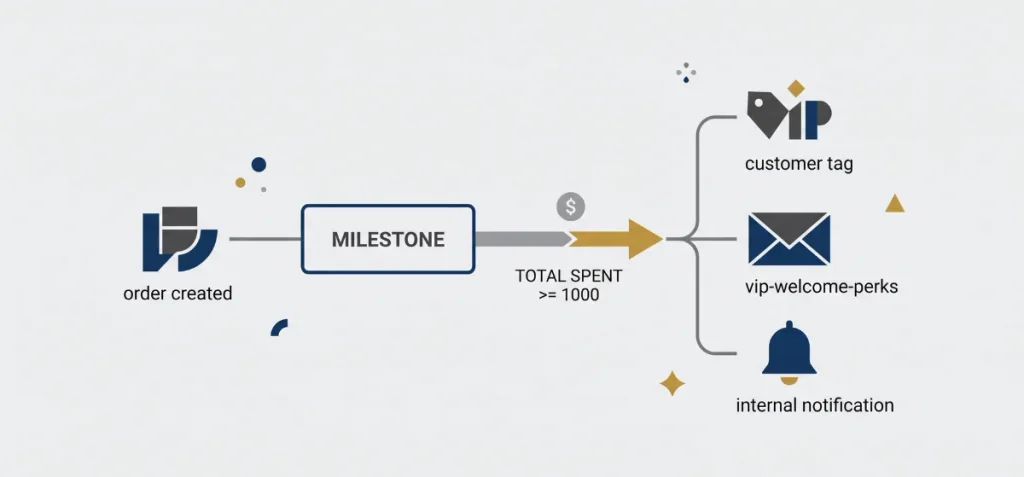
Use case: Reward high-value customers when their total spend crosses an elite milestone.
Prompt:
Create a Shopify Flow workflow.
Trigger: Order created.
Step 1: Check if the customer’s total spent is greater than or equal to 1000.00 and the customer tags don’t contain ‘VIP.’
Step 2: Action: Add customer tag ‘VIP.’
Step 3: Check if the customer email marketing state equals SUBSCRIBED.
Step 4: If true, send the marketing email template “vip-welcome-perks.”
Step 5: Action: Send an internal email to the staff notification address “[YOUR_STORE_EMAIL]” with the subject “New VIP Customer: {{customer.displayName}}.”
Flow logic: Order created → Condition: total spent >= 1000 and no VIP tag → Tag: VIP → Condition: SUBSCRIBED → Email perks → Internal staff notification.
Why the prompt works: It isolates customer lifetime spend using explicit numeric criteria. Checking for the absence of the ‘VIP’ tag ensures existing VIP buyers do not receive duplicate milestone notices on subsequent orders.
7. Browse Abandonment Follow-Up
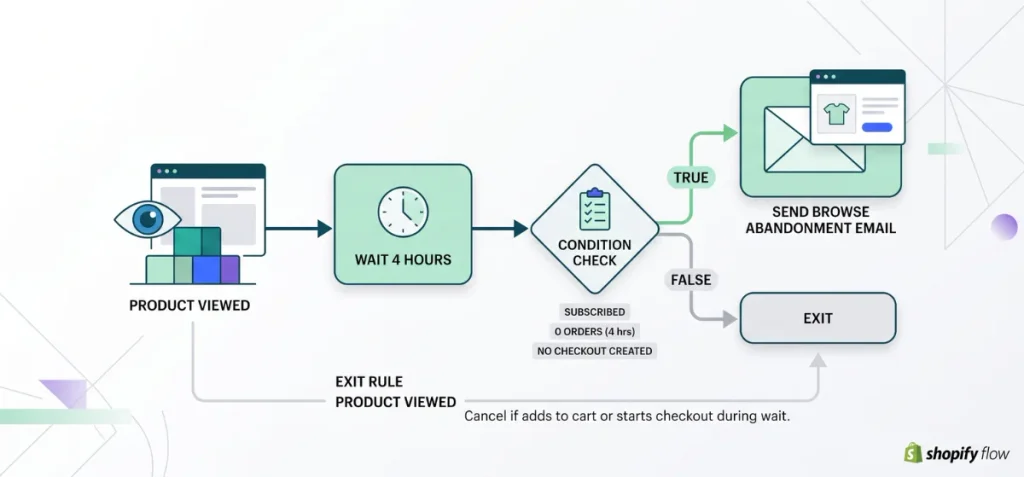
Use case: Nudge identified shoppers who browsed specific product collections without adding items to their cart or starting checkout.
Prompt:
Create a Shopify Flow workflow.
Trigger: External app connector event “Product Viewed.”
Step 1: Wait 4 hours.
Step 2: Check if the customer’s email marketing state equals SUBSCRIBED, the customer has placed zero orders in the last 4 hours, and no checkout was created.
Step 3: If true, send the marketing email template “browse-abandonment-reminder.”
Exit Rule: Cancel send if the customer adds an item to the cart or initiates checkout before the wait period elapses.
Flow logic: Product Viewed (Connector) → Wait 4h → Condition: SUBSCRIBED, 0 orders, no checkout → Browse Email → Exit.
Why the prompt works: Native Flow triggers do not track front-end page browsing natively without a connector app or theme integration.
Specifying an app connector prevents Sidekick from inventing an unsupported native page-view trigger.
8. Replenishment Reminder
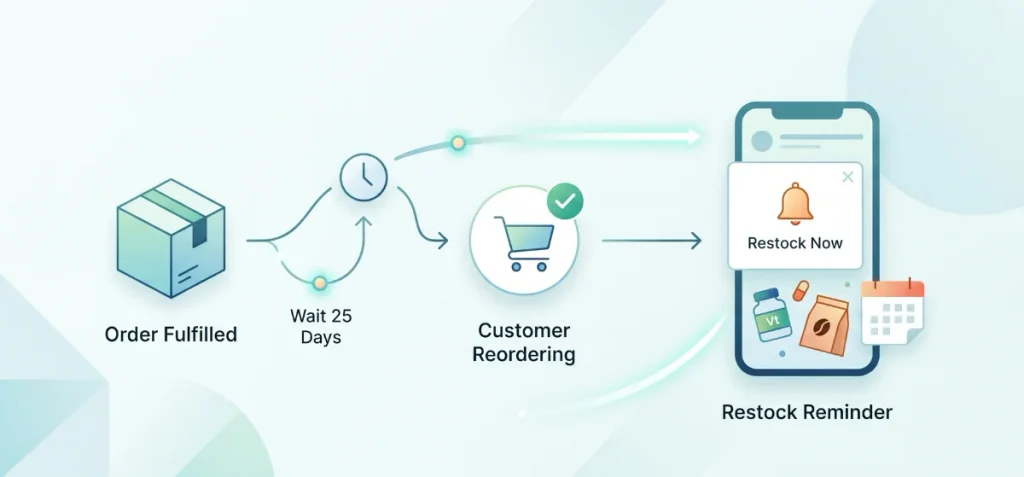
Use case: Remind shoppers to restock consumable products based on their actual usage cycle.
Prompt:
Create a Shopify Flow workflow.
Trigger: Order fulfilled.
Step 1: Check if the line item product tags contain “30-day-supply” and the customer email marketing state equals SUBSCRIBED.
Step 2: Wait 25 days.
Step 3: Check if the customer has placed no new orders containing the product tag “30-day-supply” since the fulfillment date.
Step 4: If true, send the marketing email template “restock-reminder” referencing the purchased product title.
Exit Rule: Abort sequence if the customer reorders the consumable item before day 25.
Flow logic: Order fulfilled → Condition: Tag “30-day-supply” and SUBSCRIBED → Wait 25d → Re-check: No restock order placed → Restock Email → Exit.
Why the prompt works: Anchoring the sequence to a specific product tag (“30-day-supply”) keeps replenishment logic targeted.
The 25-day wait prompts customers five days before running out, factoring in shipping lead times.
What to Tell Sidekick Not to Invent
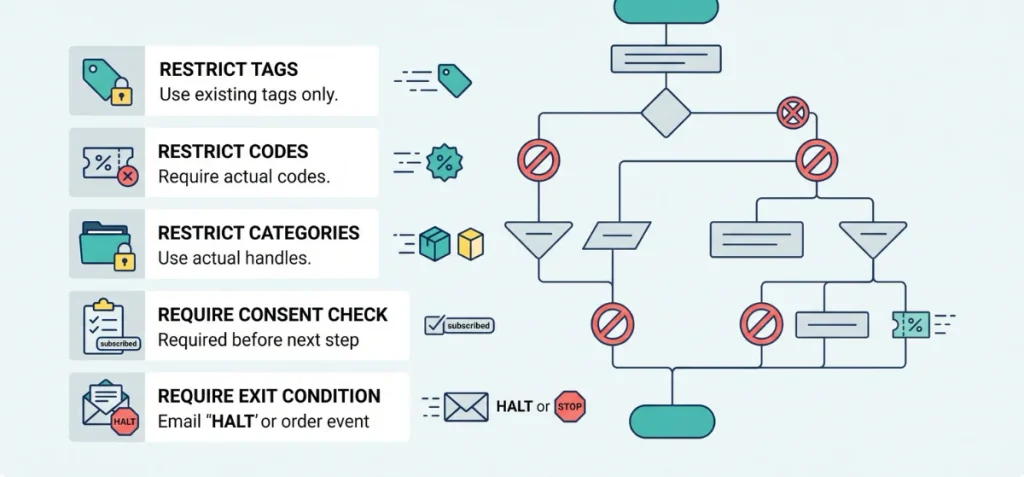
Sidekick generates reliable workflow logic only when you apply strict negative constraints. Artificial intelligence tools fill unspecified parameters with invented assumptions, which can break workflow execution.
Add this negative instruction block to your Sidekick prompts:
- Do not invent customer tags: Restrict logic to tags currently defined in your admin panel.
- Do not invent discount codes: Require explicit merchant discount codes like [YOUR_DISCOUNT_CODE] rather than generated codes.
- Do not invent collections or product categories: Reference the exact collection handles present in your store catalog.
- Do not assume marketing consent: Require an explicit check that the customer’s email marketing state equals subscribed before triggering messages.
- Do not omit exit conditions: Halt all subsequent emails the moment an order is created.
- Do not invent non-existent data fields: Restrict conditions to documented Shopify Liquid variables and Flow schema properties.
According to Shopify’s prompting guidelines, specifying both what to do and what to avoid prevents incorrect logic branches. Clear boundaries keep your automated sequences grounded in actual store data.
Stores needing custom AI discovery can also review AI & LLMs optimization for Shopify to align internal store data with conversational search models.
How to Validate an AI-Generated Shopify Flow Before Turning It On

Sidekick sets generated workflows to inactive by default. Never activate an automation without verifying each step against real store conditions.
Pre-Activation Verification Checklist
| Element | Verification Check |
| Trigger | Does the workflow use a verified, real-time Shopify event trigger? |
| Eligibility | Does the sequence verify that the customer’s email marketing status is subscribed? |
| Delays | Are all wait durations set to reasonable hours or days without exceeding 90 days? |
| Re-checks | Does the flow re-evaluate customer order status after every delay period? |
| Data Fields | Do all referenced customer tags, collections, and metafields exist in your Shopify admin? |
| Exit Rule | Does the workflow terminate if a customer completes a purchase during a wait? |
| Testing | Have you triggered the workflow with a test order or sandbox customer profile? |
Shopify’s Flow actions reference highlights an important technical behavior: the Wait action refreshes customer and order data once the pause elapses. A buyer might place an order or unsubscribe while an automation is waiting.
Checking conditions right before triggering an email action ensures the message sends based on current data rather than stale information.
Large enterprises operating high-volume stores can integrate these validation standards into a broader Shopify Plus automation strategy to prevent redundant customer messages across connected sales channels.
Shopify Flow Email Prompt Mistakes That Break Automations

Workflow automations fail when prompts lack precise parameters. Unclear instructions lead Sidekick to generate fragile logic branches that can misfire or skip critical checks.
| Mistake | Why It Fails | Better Prompt Instruction |
| “When someone buys…” | Ambiguous event description that confuses order creation with fulfillment or payment authorization. | Name the exact event: Trigger: Order created or Trigger: Order fulfilled. |
| Omitting wait periods | Emails fire back-to-back immediately after the trigger event. | State every delay clearly: Wait 2 hours before Step 2; wait 24 hours before Step 4. |
| Single top-level condition | Customer data changes during delays, causing outdated steps to execute. | Add rechecks after each delay: After the wait, verify the customer has placed zero orders. |
| Invented customer tags | The workflow checks for tags that do not exist in your store. | Restrict tag references: Use only existing customer tags: “VIP” and “Wholesale.” |
| Skipping consent checks | Sending marketing emails to non-subscribed contacts violates privacy laws and fails in Shopify. | Enforce status: Verify the customer email marketing state equals SUBSCRIBED. |
| No exit rule | Customers who purchase still receive subsequent abandoned-cart or win-back discounts. | Define terminal logic: Stop workflow immediately if the customer places an order. |
| Vague product collections | Sidekick creates dynamic placeholders that point to missing inventory collections. | Specify catalog handles: Reference collection handle “bestsellers.” |
| Skipping manual tests | Unchecked automations send live emails with broken variables to real shoppers. | Run a sandbox run: Test in draft mode with a test order before turning on. |
Shopify documentation confirms that the Send Marketing Email action fails if the recipient has not explicitly opted into marketing. Enforcing an explicit consent check prevents workflow execution errors.
Shopify Flow Email Chain vs Dedicated Email Platform
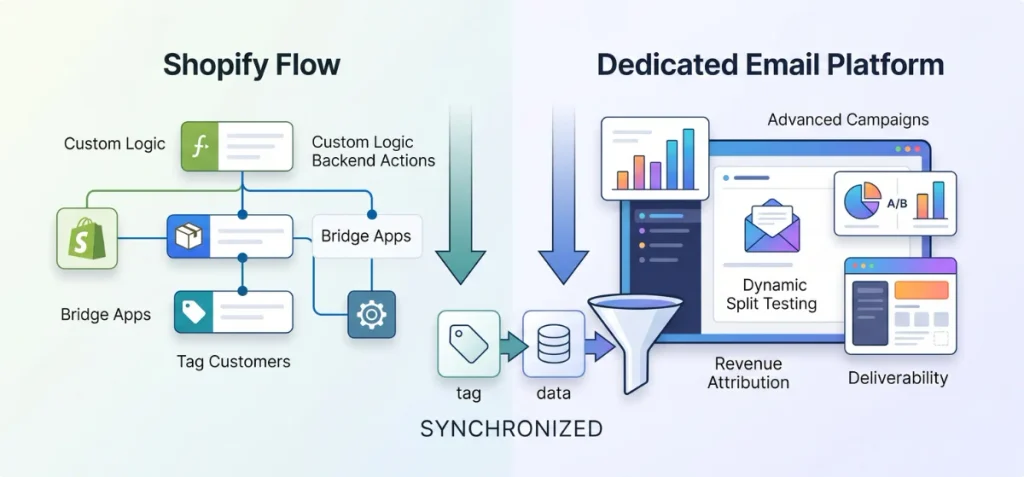
Shopify Flow handles backend store events cleanly, but dedicated email platforms remain essential for advanced campaign marketing.
- Use Shopify Flow when: You need custom operational logic that bridges multiple store apps, tags customer accounts based on lifetime spend, alerts support teams, or triggers external webhooks.
Flow excels at reading raw store data and executing automated backend actions across your entire admin panel.
- Use a dedicated platform (Klaviyo, Omnisend, Mailchimp) when you require dynamic drag-and-drop template builders, multivariate split testing, automated deliverability monitoring, predictive churn calculations, and direct revenue attribution.
Many merchants connect both systems. Flow captures complex Shopify events and passes clean customer tags or custom metafields to an external email service provider, which handles delivery and creative rendering.
Rounding Up
These Shopify Flow AI prompt examples for email chains allow you to build dependable automations without logic gaps or accidental customer messages.
High-performing workflows require explicit structure: define the exact Shopify trigger, state every wait duration, re-check buyer eligibility after pauses, and enforce terminal exit rules.
Treat Sidekick drafts as starting blueprints rather than finished products. Follow a rigorous four-step release habit: generate the logic, review each branch, test with sandbox data, and activate with confidence.
FAQs
Can Shopify Sidekick Create an Email Sequence in Flow?
Yes. Sidekick generates workflow structures from conversational text prompts. It creates the sequence as an inactive draft, requiring you to review triggers, conditions, and delays before activation.
Can Shopify Flow Send Marketing Emails to Every Customer?
No. Shopify blocks marketing email actions to customers who have not agreed to email marketing. Your workflow must verify that the customer’s email marketing state equals subscribed before triggering a message.
Should I Use Shopify Flow or Shopify Messaging for an Email Automation?
Use Shopify Messaging for native email marketing automations like abandoned checkout recovery, browse abandonment, and welcome sequences. Use Shopify Flow for custom business logic, internal staff alerts, tag management, and third-party app connectors.
How Long Can Shopify Flow Wait Between Emails?
The Wait action supports delays up to 90 days per step. If an automation requires a wait time longer than 90 days, you must use the Scheduled Time trigger to query customer records on a recurring timetable.