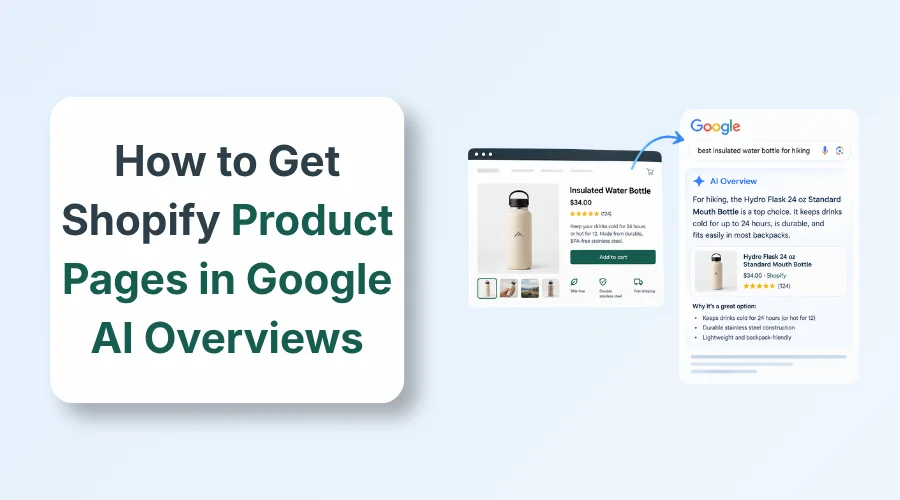
To learn how to get Shopify product pages in Google AI Overviews, optimize your core search eligibility. Connect your store to Google Merchant Center, maintain accurate JSON-LD schema, and write clear product specifications directly on your pages.
Many merchants struggle with how to get Shopify product pages in Google AI Overviews. Traditional rankings alone no longer guarantee that shoppers will see your products.
Missing out on AI-generated answers costs your store clicks, traffic, and sales. Outdated product data and thin descriptions prevent Google from understanding what you sell.
This guide explains how to connect Merchant Center feeds, fix product schema, and structure product copy. Follow these steps to improve your catalog visibility across Google search features.
Can Shopify Product Pages Appear in Google AI Overviews?
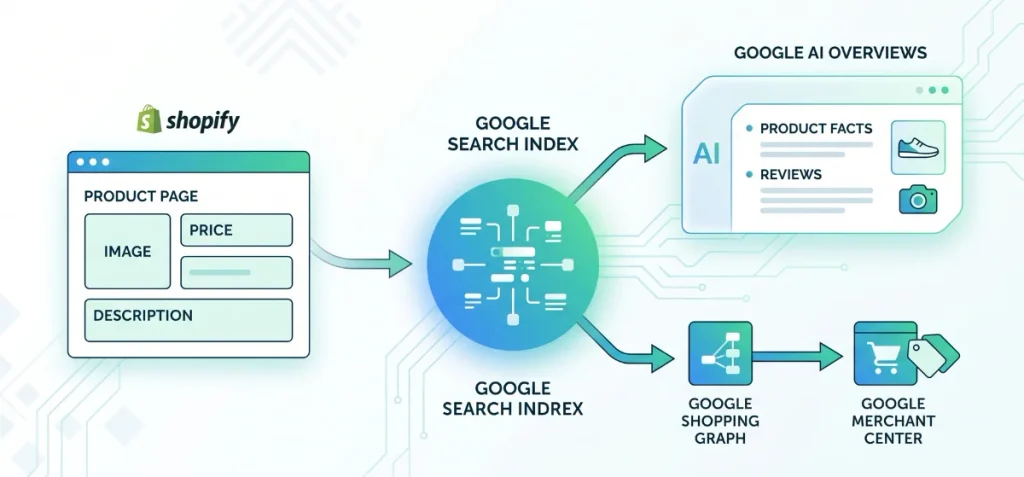
Yes. Shopify product pages can show up in Google AI Overviews.
Your store pages become eligible for AI features when they meet standard Google Search rules. Google doesn’t give store owners an “Apply for AI Overview” button. You can’t fill out a form to get your products picked.
Google builds AI Overviews and AI Mode directly on its core Search index. The AI reads from the same index that powers normal web results. According to Google Search Central documentation on AI features, there is no special AI markup.
You do not need a custom file like an llms.txt either. Core technical SEO still does the foundational work. You can check my Shopify Plus SEO Guide to verify basic crawlability and indexation settings.
Google Merchant Center adds a second data layer for stores. It feeds structured commerce facts straight to the Google Shopping Graph.
These steps improve the conditions Google uses to understand, crawl, index, and retrieve your product information.
Google AI Overviews vs Google Shopping vs Google AI Shopping vs AI Mode
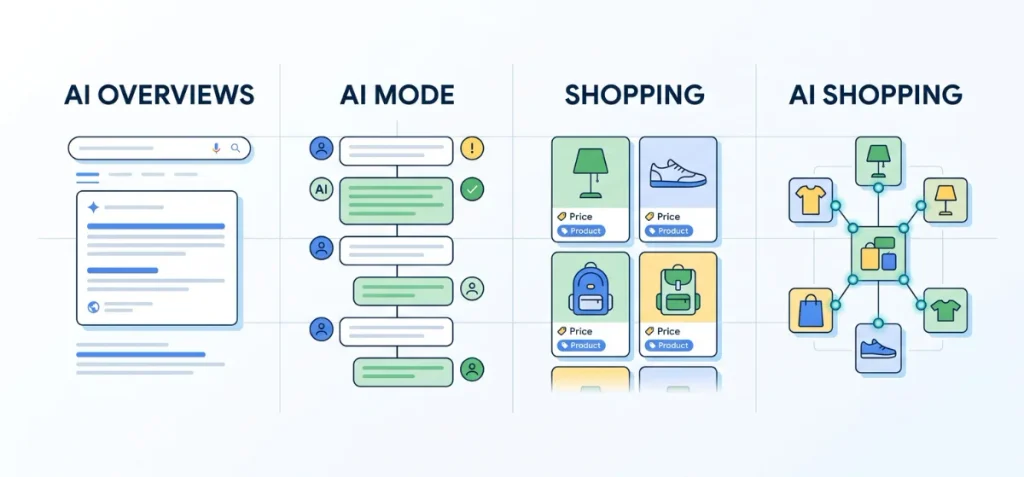
Google uses several distinct platforms to display products. Many store owners mix them up. You need to know how each entity works so you can optimize your store accurately.
| Entity | Role in the Ecosystem |
| Google AI Overviews | AI-generated summary answers shown directly within standard Google Search results. |
| Google AI Mode | A conversational Google Search experience built for interactive follow-up questions. |
| Google Shopping | The broader commerce ecosystem that powers paid product ads and free organic listings. |
| Google AI Shopping | AI-powered commerce experiences that assemble product recommendations across Google surfaces. |
| Google Merchant Center | The operational platform where retailers submit, verify, and manage product inventory data. |
| Shopping Graph | Google’s commerce database that connects billions of products, sellers, brands, and real-time inventory facts. |
| Google AI Studio | A developer platform to build custom machine learning models. It has zero connection to Shopify catalog indexing. |
Do not waste time trying to submit a product catalog to Google AI Studio. That environment exists purely for developers building custom software prototypes.
It doesn’t control store indexing or citation visibility in AI Overviews.
You must view Google AI Shopping through two separate pipelines:
- Merchant Center → Product and Commerce Data
- Google Search → Page Retrieval and Citations
Official documentation on Google Search Central ecommerce guidance highlights this exact split. Google Search finds your Shopify HTML pages, crawls the copy, and extracts citations.
At the same time, Google Merchant Center feeds structured pricing, stock status, and shipping rules directly into the Shopping Graph. AI features combine these two channels to display accurate, reliable product answers.
Key Steps to Follow to Get Shopify Product Pages in Google AI Overviews
Here is how I set up Shopify stores so Google can surface products inside AI Search results.
Step 1: Check Google’s Search Generative AI Setting First
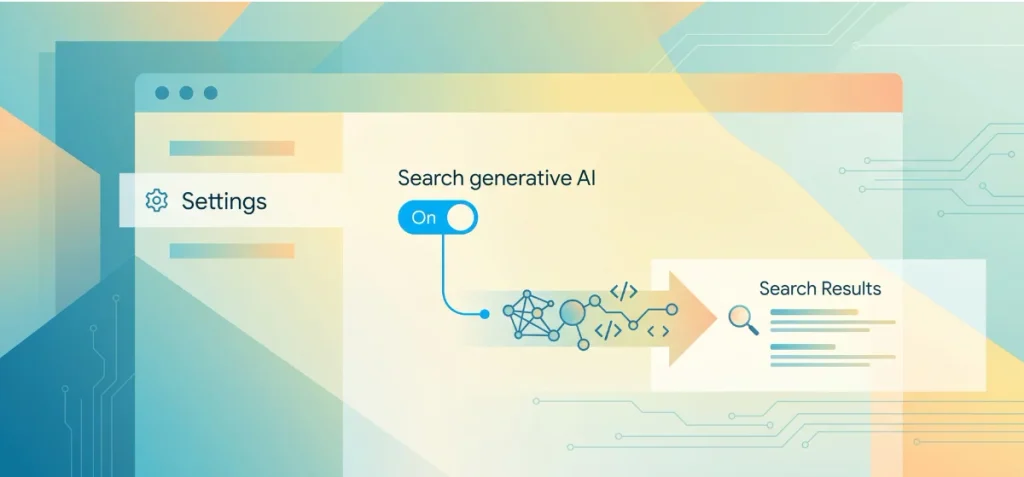
Start with your account permissions before you edit any code.
- Sign in to your Google Search Console account.
- Click the Settings menu on the left sidebar.
- Locate the Search generative AI control.
- Confirm that your property is set to be included.
Google sets this option to included by default. Double-check it anyway. If someone on your team turned it off, your store pages cannot be cited in AI Overviews or AI Mode.
Keep in mind that this control differs completely from Google-Extended. Google-Extended lives in your robots.txt file to manage standalone AI model training.
The Search generative AI toggle lives only in Search Console. Google confirms that this setting applies to Search generative AI experiences, but it is not a Search ranking signal.
Solid technical health determines whether Googlebot can crawl and index your pages in the first place.
Review my Shopify Plus SEO Guide to verify your store architecture, canonical tags, and indexation controls before moving to feed setup.
Step 2: Connect Shopify to Google Merchant Center
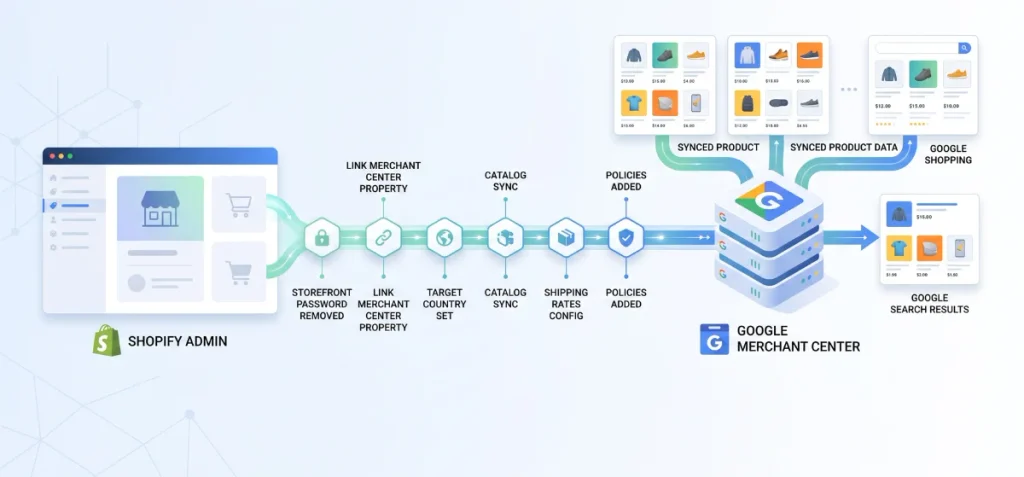
Next, link your store directly to Google Merchant Center.
Google recommends the official Google & YouTube app for Shopify. Install this channel from the Shopify App Store to build your verified commerce pipeline.
Complete these setup steps inside your store admin:
- Remove storefront password protection. Googlebot can’t crawl or verify your domain if store password protection remains active.
- Connect your Shopify account to your verified Google Merchant Center property.
- Choose your primary target country and match the default store language.
- Sync your active product catalog across the channel.
- Confirm inventory levels and stock availability flags.
- Configure accurate shipping rates and delivery estimates.
- Add complete return and refund policies.
- Enter valid business contact details, phone numbers, and physical addresses.
- Check the Diagnostics tab in Merchant Center to resolve any item disapprovals.
Do not treat these attributes as direct ranking factors. They are baseline requirements for product-data completeness and commerce eligibility.
Google uses these inputs to verify physical inventory across Google Shopping and generative search surfaces.
| Merchant Center Field | Role in Commerce Eligibility |
| Product title | Identifies the product clearly to Google systems. |
| Description | Explains key features, materials, and primary use cases. |
| Brand | Establishes the entity identity of the maker or retailer. |
| GTIN | Supplies universal global barcode identification (UPC, EAN, or ISBN). |
| MPN | Identifies specific models when a GTIN does not exist. |
| SKU | Maintains internal catalog consistency across Shopify and Google. |
| Product category | Maps your item to the official Google product taxonomy. |
| Price | Ensures transaction accuracy between feed data and checkout pages. |
| Availability | Confirms whether an item is in stock, out of stock, or on preorder. |
| Images | Enables visual product understanding. Google rejects images with watermarks or promotional text overlays. |
| Shipping | States exact delivery costs, service speeds, and handling times. |
| Returns | Confirms return windows and restocking fees to establish buyer trust. |
Fill every field. Complete product records help Google connect your store directly to buyer queries in Google AI Shopping.
Step 3: Give Google Richer Product Information

Standard feed values cover only baseline needs. You can supply extra fields to give Google deeper semantic context.
Critical clarification: These are Merchant Center product attributes, not special Shopify schema properties. Do not confuse feed fields with JSON-LD tags on your web pages.
Product Highlights
The “product_highlight” attribute lets you submit short, bulleted feature summaries. Google Merchant Center documentation for product highlights notes that this data aids product discovery across generative experiences like Google AI Mode.
Google enforces strict rules for this attribute:
- Submit between 2 and 100 highlights per item.
- Google recommends about 4 to 6 highlights for best readability.
- Keep each highlight between 1 and 150 characters long.
- State clear product facts. Do not stuff keywords into these lines.
- Avoid repeating content from your product title, main description, or separate specs.
Product Details
The “product_detail” attribute structures technical specs that standard feed fields do not capture.
It organizes facts into clear “Entity-Attribute-Value” sets. Google uses this format to match nuanced search queries with exact physical specifications.
You group this data into three parts:
- Section name: Material
- Attribute name: Outer shell
- Attribute value: Recycled polyester
This structure helps Google extract exact specifications when shoppers ask specific technical questions in search results.
Product Questions and Answers
The “question_and_answer” feed attribute provides direct answers to common customer inquiries. Google specifically designed this attribute to support conversational interactions in Google AI Mode.
You can add practical answers to high-friction buying decisions:
- Is it waterproof?
- Does it fit a 15-inch laptop?
- Is the strap adjustable?
- Can I machine wash it?
- Does it include a charger?
Clear answers eliminate doubt for potential customers. Google can extract these details directly to resolve shopper inquiries in conversational search.
Step 4: Fix Your Shopify Product Structured Data
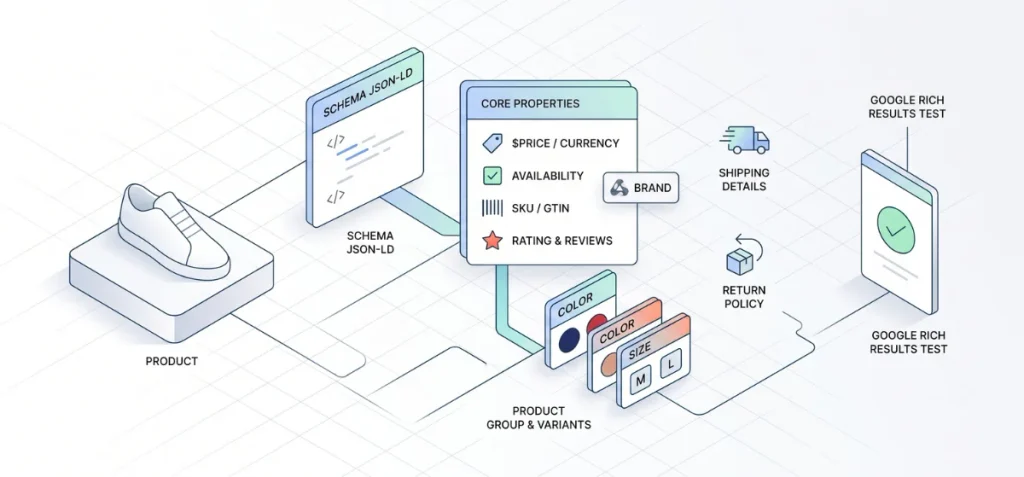
Many store owners misunderstand how schema markup works with AI. Structured data helps Google understand the product and can support eligibility for merchant listing search features.
It isn’t a special requirement for appearing in AI Overviews.
Official Google Search Central documentation on product structured data confirms this rule. You do not need schema to earn an AI citation.
You need accurate schema to help Google verify product entities and earn merchant rich results.
Validate the Core Product Data
Your Shopify theme should output clean JSON-LD markup on every product page. Google connects this schema to your Merchant Center feed.
Make sure your markup contains these core properties:
- Product: Identifies the top-level item.
- Offer: Contains commerce details for buyers.
- price and priceCurrency: States the exact checkout price and currency code.
- availability: Matches current inventory status.
- SKU and GTIN: Confirms internal numbers and global barcodes.
- brand: Names the entity behind the item.
- image: Points to clean product photos.
- url: Links to the canonical product page.
- aggregateRating and review: Displays authentic buyer reviews when you have them.
Google requires markup to match visible page content. Do not output structured data values that disagree with what shoppers see on the screen.
Discrepancies between schema and visible page copy cause validation penalties.
Handle Variants Correctly
Many Shopify stores break their schema when an item comes in multiple sizes or colors. Google recommends the ProductGroup type for multi-variant products.
Use these schema properties to organize variant relationships:
- ProductGroup: Represents the parent product family.
- productGroupID: Assigns a persistent ID to the parent collection of variants.
- variesBy: Tells Google which attributes change, such as size or color.
- hasVariant: Nests individual Product entries for each separate size or color combination.
This markup helps Google understand each specific variation without mistaking variants for duplicate products.
Shipping and Returns
Google looks for clear fulfillment rules. You can define offerShippingDetails and merchantReturnPolicy directly inside your product schema.
You can also configure these policies inside Merchant Center. Both methods give Google the purchase terms it needs to evaluate your offer.
Test Your Markup
Test your code before you push theme edits live. Paste your product URL into the Google Rich Results Test.
Do not view this tool as a system that certifies a page for AI Overviews. It simply validates structured data syntax and checks merchant listing eligibility.
Fix any errors or missing required fields so Google can read your product specifications without issues.
Step 5: Write Product Pages for Commercial Query Fan-Out
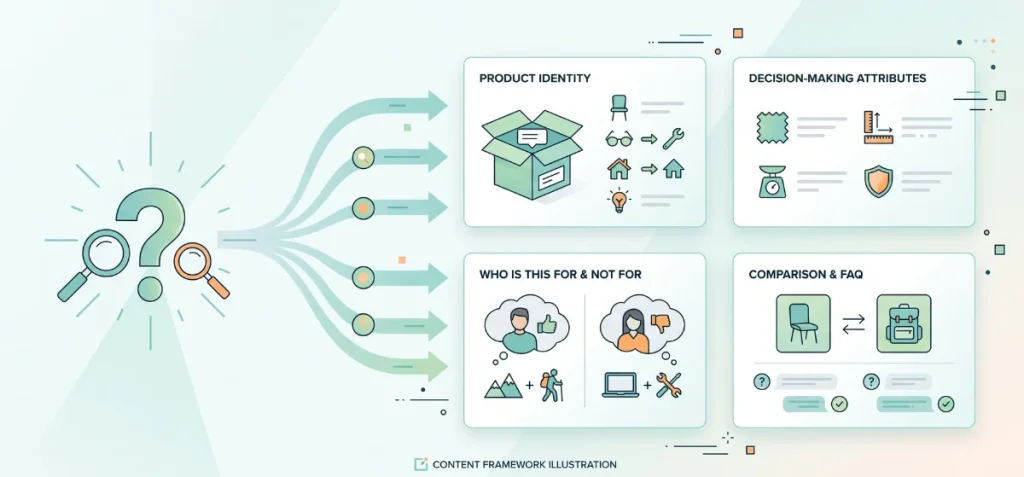
Technical setup alone will not win AI citations. Google’s AI systems use a retrieval process called query fan-out.
When a shopper enters an open-ended question, Google breaks the request into multiple sub-queries. It searches for specific materials, sizing differences, product limits, and real-world use cases simultaneously.
Google Search documentation emphasizes useful, original, people-first content. You do not need special AI phrasing or unnatural keyword density. You need thorough factual answers that resolve full query families.
Before publishing a product description, I check whether it gives shoppers enough useful information without padding the page with repetitive keywords.
You can audit your text density and readability with the Shopify SEO Word Counter. Apply this content framework directly to your Shopify product descriptions:
Answer What the Product is in the First Paragraph
State the product identity immediately. Lead with four specific facts:
- What it is: The exact item type.
- Who it is for: The intended user.
- Primary use case: The main activity or problem it solves.
- Main differentiator: The core feature that separates it from standard alternatives.
Add Decision-Making Attributes
Provide direct, factual specifications in short sentences or clean bullet lists. Cover the physical properties buyers evaluate:
- Material composition
- Dimensions and weight
- Capacity and sizing
- Compatibility requirements
- Durability ratings
- Battery life or power needs
- Care and washing guidelines
- Warranty terms
- Operating environment and physical limitations
Add “Who is This For?”
Outline specific customer situations. State exact job roles, skill levels, or usage environments where the item performs best.
Add “Who Shouldn’t Buy This?”
List scenarios where the item is a bad fit. If a backpack cannot hold a 16-inch laptop, state that restriction plainly. Clear boundaries clarify product fit and establish genuine merchant credibility.
Add Comparison Language
Shoppers constantly evaluate alternatives. Address common product choices directly on the page:
- Leather vs. synthetic canvas
- 20L daypack vs. 30L travel pack
- Wired audio vs. wireless Bluetooth
- Standard edition vs. heavy-duty model
Do not spin up thin, separate URLs for minor product distinctions. Keep related comparisons on the main product URL to consolidate topic relevance.
Add Real Product FAQs
Close your page copy with practical buyer questions. Gather these questions directly from real customer touchpoints:
- Search queries in Google Search Console
- Customer support tickets
- Product reviews on your storefront
- Return reasons collected during refunds
- Pre-sales contact emails
- Common on-site search queries
Answering 5 to 8 targeted questions is an editorial recommendation, not a mandatory Google rule. Focus on resolving genuine objections so AI systems can retrieve direct answers from your body text.
Step 6: Optimize Shopify Collection Pages for Category-Level AI Queries
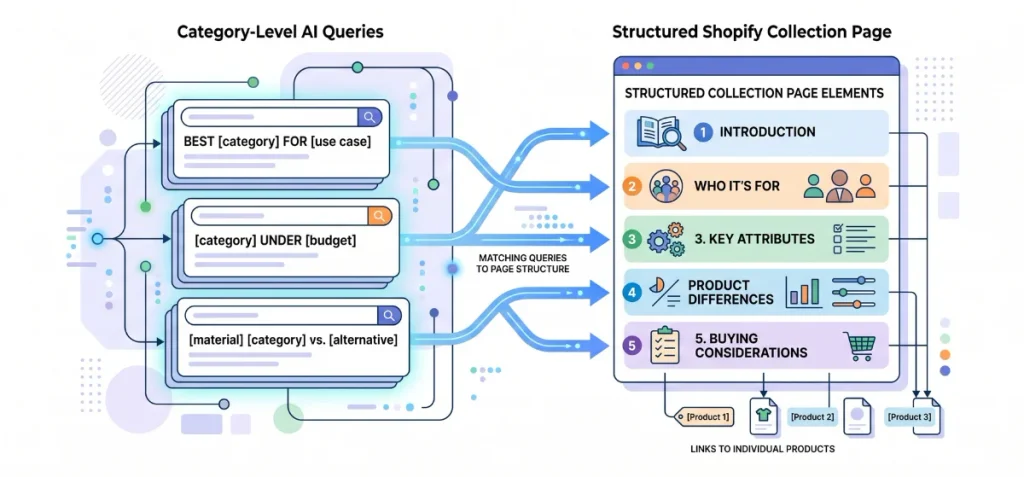
Shoppers do not only search for single products. Many shoppers start with broad questions about a product class.
AI systems assemble category overviews to answer these multi-item requests. Your collection page should supply category context, while your product pages supply specific product evidence.
When both levels connect, Google can cite your collection for the overarching topic and recommend your individual products as proof.
Target clear query families on your collection pages:
- Best [category] for [use case]
- Best [category] for [audience]
- [Category] under [budget]
- [Material] [category]
- [Category] for [specific condition]
- [Category] vs. [alternative]
Structure your Shopify collection page to answer these commercial search patterns in order:
- Introduction: State the exact product category and its main practical purpose.
- Who the category is for: Define the core audience and suitable use scenarios.
- Key attributes: Explain essential features shoppers should evaluate, such as sizing or materials.
- Product differences: Clarify how items in this group vary by capability, grade, or price.
- Buying considerations: Outline trade factors to watch before checkout.
- Direct links to products: Use standard HTML links pointing directly to the relevant product URLs.
Aiming for 150 to 200 words of introductory category text is a solid editorial guideline. It is not an official Google threshold.
Clear, informative category explanations help Google connect broad shopping queries directly to your catalog without guessing.
Step 7: Build an Internal-Link Network from Content to Category to Product
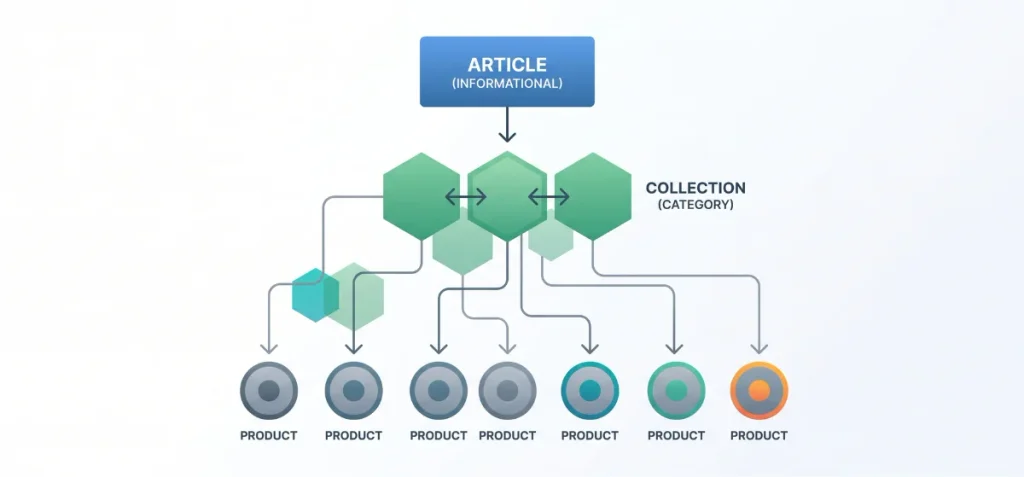
Internal links connect your store’s information graph. They show Google how broad guides relate to specific commercial offers.
I organize Shopify store links using clear semantic hierarchies:
- Informational article → Shopify collection → Shopify product
- Product article → comparison article → relevant collection → specific product
This structure passes topic relevance down to product URLs. It also gives AI systems clean pathways to verify broad recommendations against concrete product data.
| Query Cluster | Search Intent | Example Content Asset |
| Informational | Problem awareness | How to choose a waterproof backpack |
| Commercial investigation | Option comparison | Best waterproof backpacks for commuting |
| Comparison | Feature evaluation | Waterproof backpack vs. water-resistant backpack |
| Product | Purchase decision | Product-specific detail page |
| Support | Post-purchase utility | How to clean a waterproof backpack |
Do not create dozens of thin pages for minor phrasing tweaks. Consolidate overlapping intents into one comprehensive, well-structured resource.
This approach directly aligns with Google Search Essentials rules against scaled content abuse. A single in-depth guide with relevant internal links gives search systems far better evidence than multiple shallow pages.
Step 8: Strengthen Product Trust and Entity Consistency

Google evaluates whether your business and product offers are legitimate. Do not look for an invented “AI trust score.” That metric does not exist in any Google documentation.
The goal is to give Google consistent evidence about what the business, product, and offer actually are.
Build trust across every customer touchpoint using verified entity facts:
- Authentic reviews: Collect genuine customer feedback with verified purchase badges.
- First-hand product information: Include original photos, real measurements, and practical hands-on insights.
- Consistent brand identity: Keep your store name identical across Shopify, Google Merchant Center, and social profiles.
- Manufacturer details: State exact manufacturer names, brand ownership, and part numbers clearly.
- About page: Explain who owns the store, where you operate, and your business background.
- Contact information: Display real physical addresses, customer support emails, and direct phone lines.
- Shipping policy: State clear carrier options, handling times, delivery cutoffs, and regional transit fees.
- Return policy: Define return windows, restocking fees, and item condition requirements plainly.
- Warranty terms: Specify warranty coverage lengths, claim steps, and manufacturer guarantees.
Product names and attributes must match across your storefront copy, your Merchant Center product feed, and your JSON-LD structured data.
Conflicting information weakens entity clarity. Consistent facts confirm that your store is a trustworthy source for generative search features.
Step 9: Fix Shopify Technical SEO Issues That Can Prevent Retrieval
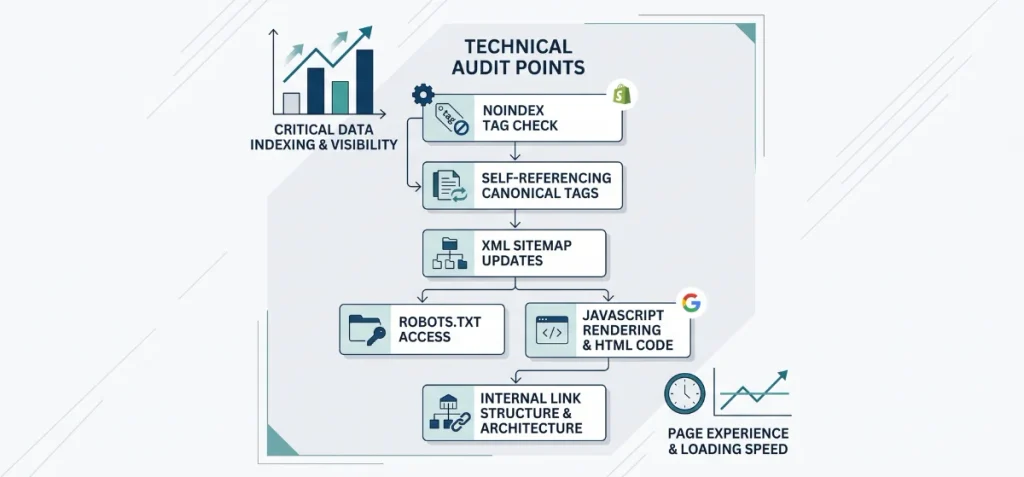
Technical errors stop Googlebot before it can read your product facts. If Google can’t index your page, AI features can’t retrieve it.
Audit these technical areas across your store:
Indexation and Crawlability
Make sure your product pages are fully indexable.
- Check that your product template does not contain an accidental noindex tag.
- Point every product URL to a self-referencing canonical tag.
- Confirm your XML sitemap includes active products and updates automatically.
- Check your robots.txt file to ensure Googlebot has access to essential theme assets.
For broader architectural setups and enterprise configurations, reference my Shopify Plus SEO Guide.
JavaScript Rendering
Google must read your specifications in rendered HTML. If product tabs or variant details rely on heavy client-side JavaScript, Googlebot might miss critical text.
Use the URL Inspection tool in Google Search Console to check the rendered DOM. Confirm that product descriptions, dimensions, and specifications are visible in the code.
Duplicate URLs and Navigation Traps
Shopify themes often generate duplicate paths for the same product. Common culprits include collection paths (such as /collections/apparel/products/item-name), variant parameter strings, and faceted filter combinations.
Unchecked filter links create crawl traps and dilute page equity. You can read my complete breakdown on Shopify Faceted Navigation SEO to manage parameter indexing properly.
For broader storefront technical errors, audit common Shopify SEO problems to fix canonicalization and redirect loops early.
Internal Links
Never leave products isolated. Orphaned products receive less crawl attention from Google. Link your top-converting items directly from high-level collection templates and relevant informational blog posts.
Page Experience
Core Web Vitals measure real-world performance, including loading speed, visual stability, and responsiveness. Fast pages help Googlebot crawl efficiently and provide a smooth shopping experience.
Do not claim or search for a special “AI score” here. Meet standard Google page experience baselines to maintain healthy search eligibility.
Step 10: Measure Visibility in AI Overviews and AI Mode
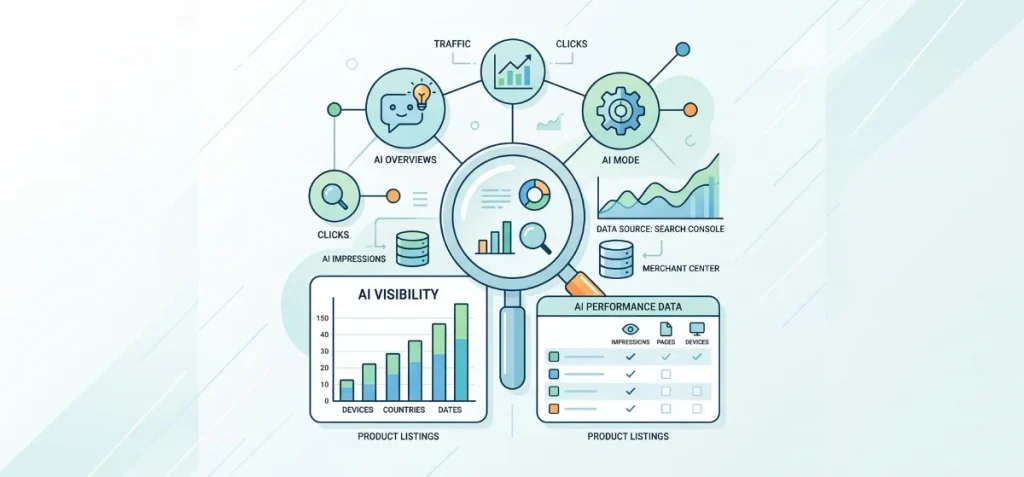
You need verified performance data to measure your store’s AI footprint. Google now provides native reporting inside its search and merchant platforms.
Use the Generative AI Performance Report in Search Console
Google launched the Generative AI performance report to track your store’s generative impressions.
Official Google Search Console Help documentation on the Generative AI performance report notes that Google rolled out these insights to all websites worldwide on August 31, 2026.
The report tracks impression data across these key dimensions:
- AI features: Includes impressions from AI Overviews and Google AI Mode.
- Pages: Groups impression totals by your canonical product URLs.
- Countries: Tracks the geographic regions where searches take place.
- Dates: Displays impression movement across days, weeks, and months.
- Devices: Separates visibility across desktop, mobile, and tablet screens.
- Search filters: Filters standard web searches and multimodal image searches, including Google Lens and Circle to Search.
Set Up a Manual Testing Framework
Do not rely on random Google searches. Build a systematic query test set to inspect physical search layouts.
Assemble a list of 30 target queries across three commercial buckets:
- 10 category queries (such as “best lightweight travel backpacks”)
- 10 comparison and use-case queries (such as “waterproof backpack vs. roll-top bag”)
- 10 direct product queries (such as “brand name 25L commuter pack specs”)
Log your audit results in a manual tracking table:
| Query | AI Feature Present | Cited URL | Product Card Shown? | Competitor Cited | Missing Attribute |
| best 25L commuter pack | AI Overview | mybrand.com/products/pack | Yes | rivalbrand.com | Battery compartment spec |
| waterproof pack vs roll-top | AI Mode | None | No | travelgear.com | Waterproof depth rating |
This audit reveals exact content gaps. When a competitor earns a citation instead of your store, check their page. Note which material specifications or use-case answers you missed.
Monitor Merchant Center AI Performance Insights
Track your catalog through Google Merchant Center. Google introduced dedicated AI performance insights to display how items appear across conversational shopping surfaces.
This reporting tracks how shoppers discover your catalog across Google AI Mode, AI Overviews, and Gemini. Check these reports regularly to spot attribute gaps, missing specifications, and feed issues before they hurt your commercial visibility.
A 7-Day Shopify AI Overview Optimization Plan
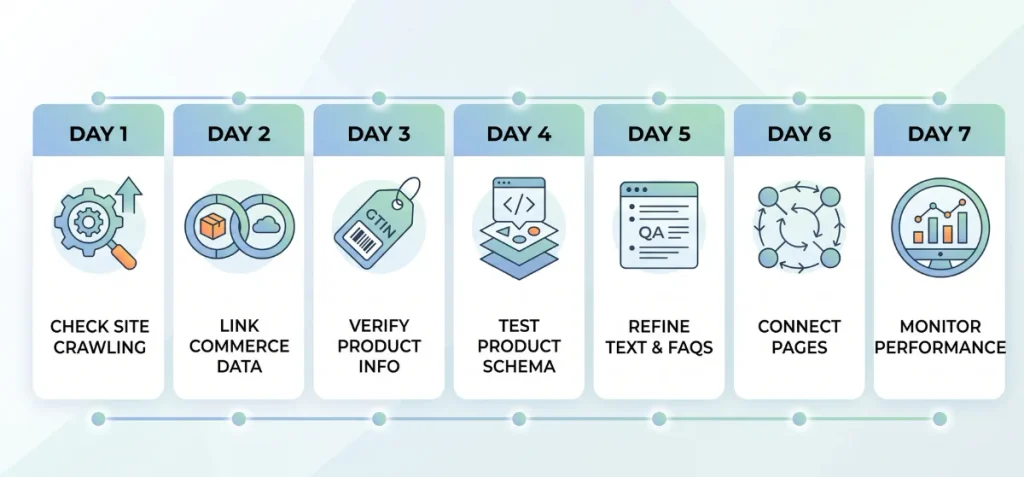
You do not need to overhaul your entire store in a single day. Break the work into operational tasks across one full week.
Day 1: Search Console Eligibility and Indexation
Start with your crawl foundation.
- Open Google Search Console.
- Check your Search generative AI setting to confirm your store is included.
- Inspect top-priority product URLs with the URL Inspection tool.
- Confirm that no accidental noindex tags block your templates.
- Verify that your product canonical tags point directly to the main product URL.
Day 2: Merchant Center Connection and Diagnostics
Connect your commerce data pipe.
- Install the official Google & YouTube app in Shopify.
- Remove any active storefront password so Googlebot can access your site.
- Link your store to a verified Google Merchant Center account.
- Open the Diagnostics tab in Merchant Center.
- Resolve any critical product disapprovals or account warnings.
Day 3: Identifiers, Product Attributes, and Policies
Improve baseline product information.
- Audit your catalog for global product identifiers.
- Add accurate GTIN values for all branded products.
- Add MPN and brand names when an item lacks a barcode.
- Confirm that inventory availability matches physical stock.
- Check that shipping rates, handling times, and return windows are set in Merchant Center.
Day 4: Product Structured Data and Variants
Validate your page markup.
- Test key product templates with the Google Rich Results Test.
- Confirm that Product and Offer schema entities match visible page text.
- Group multi-option products using ProductGroup and hasVariant markup.
- Fix any schema syntax errors or missing required fields.
Day 5: Product-Page Copy, FAQs, and Collection Context
Refine your textual content for query fan-out.
- State what the product is and who it is for in the first paragraph.
- Add exact physical dimensions, materials, and usage limits.
- Include comparison details to answer common trade questions.
- Add 5 to 8 real buyer questions to your on-page FAQ section.
- Update top collection pages with 150 to 200 words of category context.
Day 6: Internal Links and Supporting Content
Connect your topical cluster.
- Link from your informational blog guides to relevant collection pages.
- Link from category pages directly to your primary product pages.
- Ensure no high-priority product is orphaned without category links.
- Consolidate duplicate or thin articles into comprehensive resources.
Day 7: Search Console and Merchant Center Monitoring
Set up your measurement routine.
- Open the Generative AI performance report in Google Search Console.
- Review your baseline impression numbers across AI Overviews and Google AI Mode.
- Check Merchant Center AI performance insights for feed attribute gaps.
- Run your 30-query manual commercial test set and record any citation gaps.
Wrapping Up
My practical roadmap for How to Get Shopify Product Pages in Google AI Overviews relies on verified data.
I focus on clean technical SEO and accurate Merchant Center feeds. Google needs clear facts to evaluate your store. Keep your product specs detailed and honest.
Answer real buyer questions directly on each page. Track your progress inside Google Search Console every week. Consistent product data earns reliable search visibility.
FAQs
How Do I Make My Shopify Website Appear on Google Search?
Add and verify your domain in Google Search Console using DNS records. Submit your sitemap.xml under Sitemaps. Request indexing for key pages with URL Inspection. Remove storefront passwords and confirm robots.txt allows crawlers.
How to Use AI for Shopify Store?
Shopify offers built-in AI tools to run your business. Shopify Magic drafts product descriptions and creates store layouts. Shopify Sidekick answers operational questions in your admin. Shopify Inbox drafts live customer replies. External tools like Gorgias automate support tickets.
What is the Best AI Tool for Shopify?
Shopify Magic and Sidekick provide the best native tools. They cost nothing extra and live inside your admin. Magic drafts descriptions and headlines fast. Sidekick analyzes data and adjusts settings.