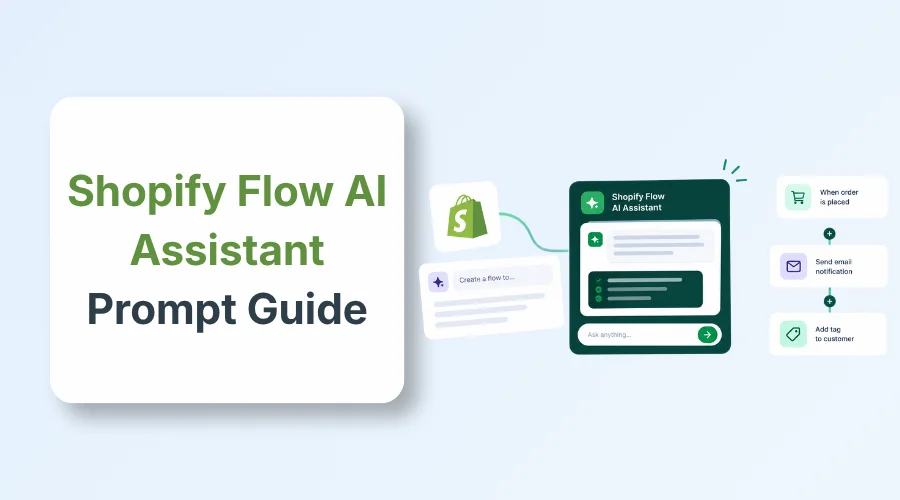
This Shopify Flow AI assistant prompt guide shows how to build automated e-commerce workflows using Sidekick. It turns natural text into active triggers, conditions, and actions across all Shopify plans. Always test your logic rules before activation.
Shopify store owners spend hours every week on repetitive admin tasks. This Shopify Flow AI Assistant Prompt Guide fixes that headache by turning simple text instructions into automated store rules with Sidekick.
Vague prompts cause broken logic, wrong customer tags, and missed fulfillment alerts. A single wrong comparison value stops orders and wastes team hours on manual bug fixes.
This guide delivers 20 copy-paste prompts for inventory, fraud, and retention. You’ll also learn exact verification steps and troubleshooting rules to launch clean workflows.
What is the Shopify Flow AI Assistant?

Shopify Flow is the main automation tool in your store admin. Sidekick is the AI helper built into Shopify. You talk to Sidekick in everyday words. Sidekick then builds the logic steps inside Shopify Flow for you.
Every Flow setup uses three basic parts. A trigger begins the process. A condition checks your store rules. The action completes the job.
| Term | What it means |
| Shopify Flow | It runs your automated store tasks |
| Sidekick | It builds Flow steps from text |
| Trigger | The store event that starts the workflow |
| Condition | It checks if the workflow should continue |
| Action | The final task that the workflow finishes |
How to Access Shopify Flow AI Assistant
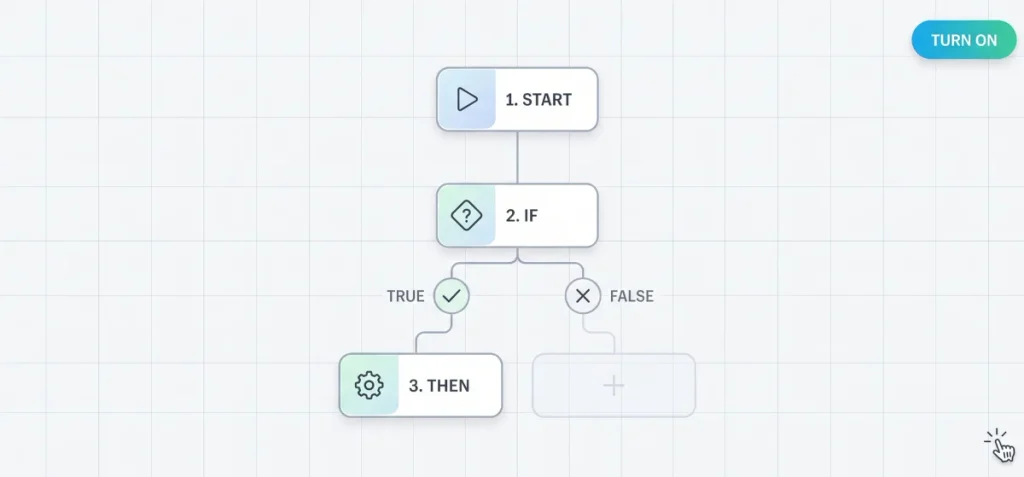
Follow these steps to build your automation:
1. From your Shopify admin, go to Apps > Flow.
2. Click “Create workflow.”
3. Click the ‘Sidekick’ icon to describe your workflow in plain words, or click “Select a trigger” to pick your starting event manually.
4. Hit ‘+’ to create a new step, then click ‘Condition’ to define the rule for your store.
5. Click “+ > Action on the True path to choose the task when your condition is met.
6. Optional: Click ‘+’ on the ‘False’ path to add extra conditions or tasks when the rule is not met.
7. Optional: Hit “More actions > Add note” to write setup instructions or team details.
8. Click “New Workflow” and enter a title for your workflow.
9. Hit “Turn on workflow” to activate it.
Shopify marks every generated workflow as inactive by default. You can read the official Shopify workflow setup guide to see all manual trigger controls.
The Best Shopify Flow AI Prompt Formula
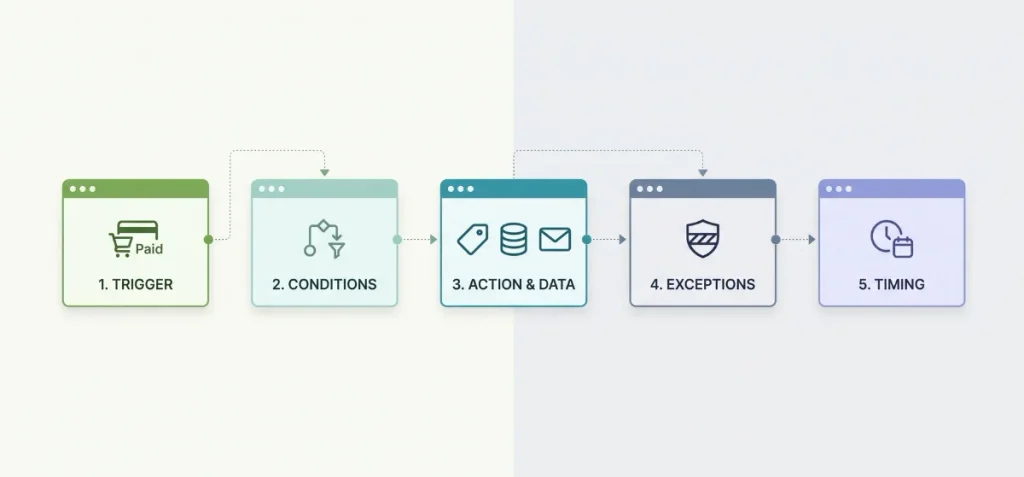
Sidekick builds accurate workflows when you provide clear structural details. A short prompt often causes errors. Use this 5-part formula to write an effective prompt:
Trigger → Conditions → Action & Data → Exceptions → Timing
1. Trigger (The Event)
Name the exact store event that starts the automation.
- Example: “When an order is paid…”
2. Conditions (The Rules)
Set clear structural boundaries using exact values, tags, or fields.
- Example: “…if the order total is $200 or greater…”
3. Action & Data (The Task)
Define the task and state the exact fields to pull. Shopify’s Flow actions guide notes that tasks fail if required variables are missing.
- Example: “…add the customer tag ‘VIP’ and pull their lifetime spend metric.”
4. Exceptions (The Guardrails)
Tell the AI what situations to ignore.
- Example: “…Do not run this workflow for B2B or draft orders.”
5. Timing (The Delay)
Define how long the workflow pauses before running the next step.
- Example: “…Wait 2 days before executing.”
Full Prompt Example
When an order is paid, if the order total is $200 or greater, wait 2 days, then add the customer tag ‘High-Value’ and send an internal notification containing the customer’s email. Do not run this workflow for B2B company orders.
Weak vs. Strong Shopify Flow Prompts
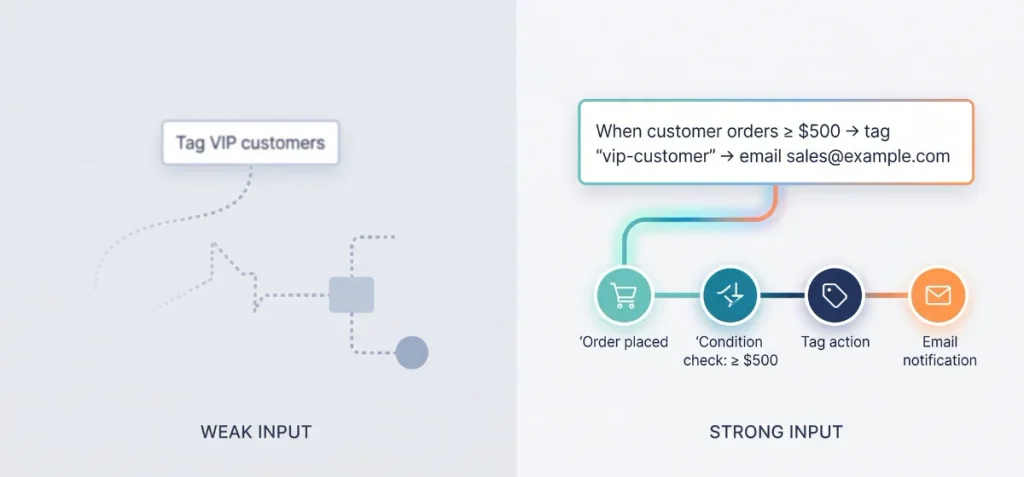
A vague prompt gives the AI too much freedom. Sidekick might pick the wrong starting trigger or omit your rules. A detailed prompt tells the AI every step to build.
| Prompt Type | Prompt Text |
| Weak | “Tag VIP customers.” |
| Strong | “When a customer places an order worth $500 or more, tag the customer vip-customer and send an internal email to sales@example.com with the order number and total.” |
Why the Second Prompt Works Better
The weak prompt skips five critical facts:
- It omits the trigger event.
- It lacks a spending threshold.
- It does not state the exact tag name.
- It forgets team notifications.
- It leaves out the destination inbox.
The strong prompt defines the exact order trigger. It sets a clear $500 condition. It specifies the exact tag text. It also tells Sidekick which fields to include in the notification email.
20 Shopify Flow AI Assistant Prompts You Can Copy
Copy these prompts into Sidekick to build workflows quickly. Each prompt includes verification steps to check before you turn on the automation.
Customer Tagging and Segmentation
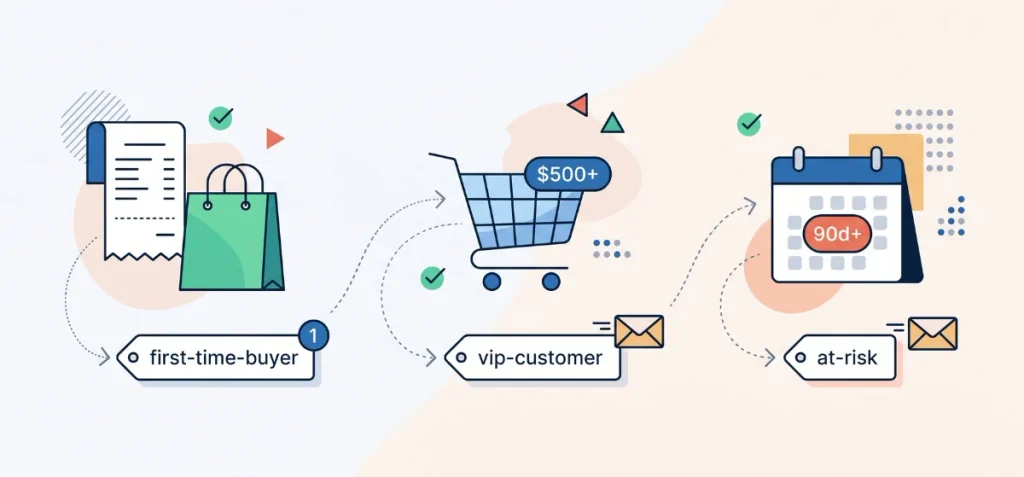
Here are the prompts for customer tagging and segmentation.
Prompt 1: First-Time Buyer Tag
When an order is created, if the customer’s order count is 1, add the customer tag first-time-buyer.
- Why it works: It uses an exact customer order count condition to isolate new buyers immediately.
- Check before activation: Confirm that the condition checks the customer’s order count instead of total checkout attempts.
Prompt 2: VIP Customer Tag
When an order is created, if the order total is $500 or more, add the customer tag vip-customer and send an internal email to sales@example.com with the order number and customer name.
- Why it works: It combines a clear monetary threshold with both a tagging task and a team alert.
- Check before activation: Verify the recipient email address and ensure your currency symbol matches your store currency.
Prompt 3: Lapsed Customer Tag
Check daily at 9:00 AM. Get customer data for customers whose last order was more than 90 days ago. Add the customer tag at-risk and send an internal email to retention@example.com.
- Why it works: It uses the scheduled trigger to evaluate inactive buyer profiles on a regular calendar cycle.
- Check before activation: Confirm the query filters out customers who already hold the at-risk tag to prevent redundant updates.
Inventory and Fulfillment
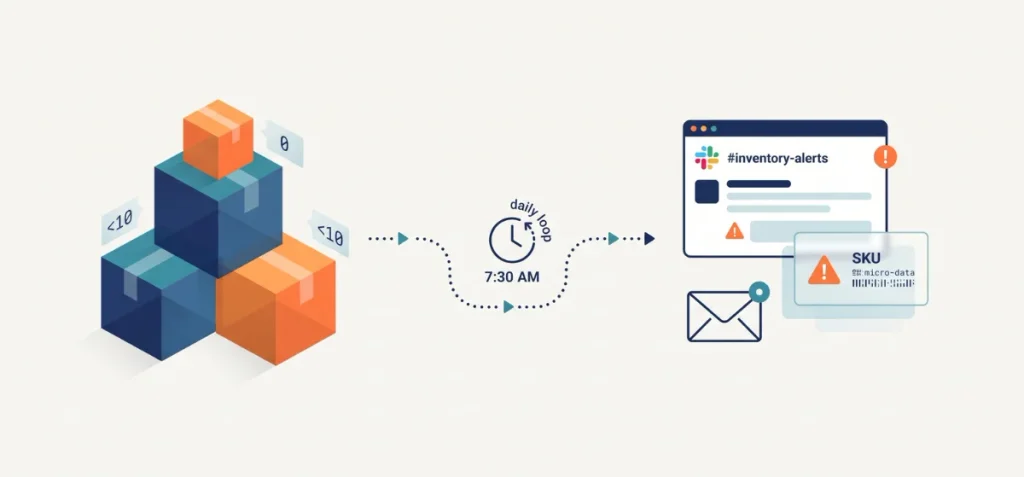
Utilize these inventory and fulfillment prompts.
Prompt 4: Low-Stock Slack Alert
When product variant inventory quantity changes, if the new quantity is less than 10, send a Slack message to the #inventory-alerts channel with the product title, variant title, SKU, and remaining inventory.
- Why it works: It monitors exact inventory count changes and routes key product identifiers to your team.
- Check before activation: Install and connect the official Slack connector in Shopify Flow before you turn on the flow.
Prompt 5: Out-of-Stock Notification
When product variant inventory quantity changes, if the inventory quantity is 0 or less, send an internal email to inventory@example.com with the product title, SKU, and location name.
- Why it works: It catches exact stock-out events across your inventory records instantly.
- Check before activation: Check that your inventory tracking is active on all variants so Flow receives stock count updates.
Prompt 6: Fulfillment Delay Alert
When an order is created, wait 3 days. After 3 days, check if the fulfillment status is unfulfilled. If true, add the order tag fulfillment-delayed and email operations@example.com with the order number.
- Why it works: It uses a Wait action to check fulfillment progress after a specific grace period.
- Check before activation: Confirm the condition inspects current fulfillment status rather than original order placement data.
Prompt 7: Daily Low-Stock Digest
Every day at 8:00 AM, get product data for variants with inventory quantity less than 5. Send an internal email to buyer@example.com listing each product title, SKU, and available quantity.
- Why it works: It pairs a scheduled trigger with a Get product data step to summarize inventory risks in one message.
- Check before activation: Make sure your email action includes a Liquid loop to list every retrieved product name correctly.
Fraud, Risk, and Order Review

Check out these prompts for reviewing fraud, risk, and orders.
Prompt 8: High-Risk Order Hold
When an order is created, if the order risk level equals high, hold the fulfillment order, add the order tag fraud-review, and send a message to the #fraud-alerts Slack channel with the order name and risk summary.
- Why it works: It stops fulfillment automatically when Shopify’s fraud analysis marks an order as high risk.
- Check before activation: Verify your fulfillment hold settings so warehouse apps respect the hold status.
Prompt 9: High-Value First Order
When an order is created, if the customer’s order count is 1 and the order total is $500 or more, add the order tag review-first-high-value and hold fulfillment.
- Why it works: It links two separate conditions to flag high-dollar purchases from unverified accounts.
- Check before activation: Ensure the condition uses an AND rule so it flags orders only when both checks pass.
Prompt 10: Payment Dispute Alert
When a payment dispute is created, send an internal email to finance@example.com with the dispute amount, order name, and dispute reason.
- Why it works: It gives your accounting team immediate details to respond to bank chargebacks.
- Check before activation: Verify the data variables match your payment processor fields in Shopify Payments.
Prompt 11: Bulk Order Flag
When an order is created, if any line item quantity is 10 or greater, add the order tag bulk-order and send an email to wholesale@example.com with the order name and product titles.
- Why it works: It flags large product quantities to help identify unauthorized resellers or wholesale opportunities.
- Check before activation: Check whether your line item loop inspects each variant line or total combined cart items.
Customer Retention and Lifecycle
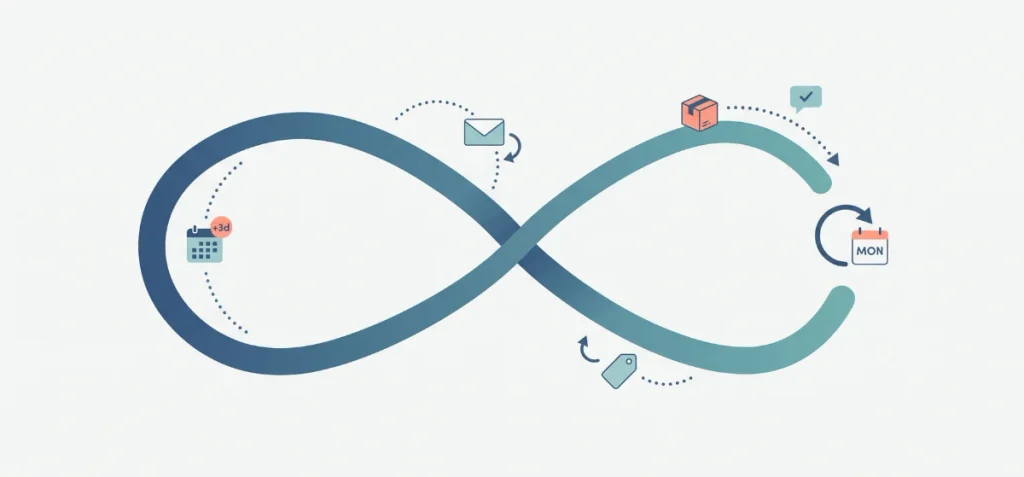
Store retention works hand in hand with traffic acquisition. Review my complete guide on how to market a Shopify store to bring buyers back before you trigger these flows.
Prompt 12: Timed Welcome Offer Check
When a customer account is created, wait 3 days. If the customer’s order count is 0, send an internal email to marketing@example.com with the customer’s email address to trigger a welcome reminder.
- Why it works: It introduces a 3-day pause and checks purchase status before taking action.
- Check before activation: Check that your email marketing connector or notification recipient is correctly configured.
Prompt 13: Delivery Review Follow-Up
When fulfillment is completed, wait 4 days. Send an internal email to reviews@example.com with the customer name, order number, and customer email address.
- Why it works: It delays your review request until the customer has time to unbox the product.
- Check before activation: Confirm your tracking numbers sync properly so fulfillment completion triggers at the real delivery time.
Prompt 14: Win-Back Customer Check
Every Monday at 9:00 AM, get customer data for customers whose last order was more than 60 days ago. Add the tag winback-needed for each customer in the list.
- Why it works: It automates your churn-prevention tagging on a regular weekly schedule.
- Check before activation: Ensure the For each action connects properly to the customer list returned by Get data.
Prompt 15: Post-Refund Check
When an order refund is created, wait 2 days. Send an internal email to support@example.com with the order name, customer email, and total refunded amount.
- Why it works: It creates a brief buffer before your customer support team reaches out to solve purchase issues.
- Check before activation: Confirm that the refund amount variable displays correctly in your chosen currency format.
B2B and Wholesale Operations
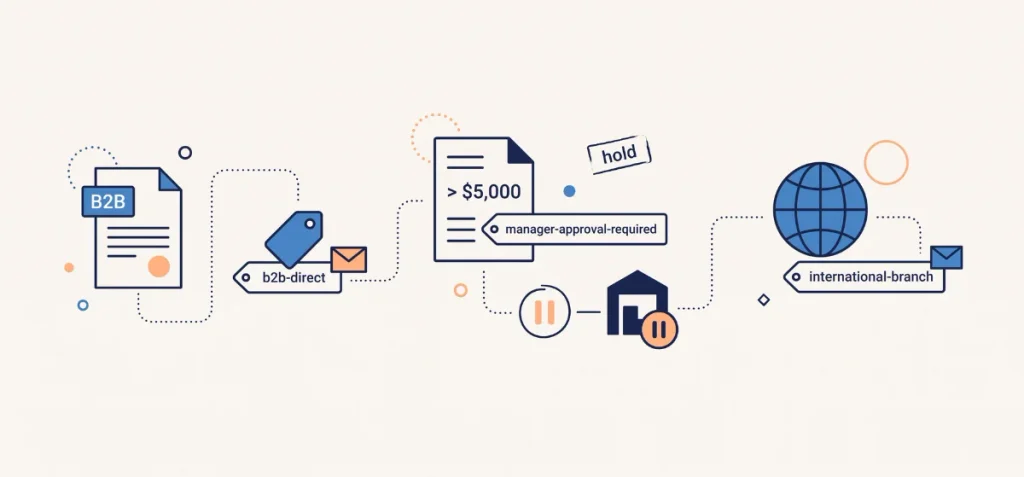
Wholesale setups require clean architecture to manage complex orders. Read my Shopify Plus strategy overview to understand how enterprise stores organize high-volume operational paths.
If your enterprise store handles massive product variants, audit your setup against my Shopify Plus SEO guide to keep catalog paths clean.
Prompt 16: B2B Order Identification
When an order is created, if the order is associated with a B2B company, add the order tag b2b-direct and send an internal email to b2b-team@example.com.
- Why it works: It segments wholesale orders from standard retail purchases automatically.
- Check before activation: Confirm your store runs on a plan that supports B2B company records.
Prompt 17: B2B Order Approval Hold
When an order is created, if the order is associated with a B2B company and the order total is greater than $5,000, hold fulfillment and add the order tag manager-approval-required.
- Why it works: It enforces spending limits by pausing warehouse fulfillment until a manager reviews the purchase.
- Check before activation: Check that your warehouse fulfillment team monitors the manager-approval-required tag.
Prompt 18: B2B Company Location Tag
When a company location is created, if the shipping address country code is not US, add the company location tag international-branch and send an internal email to compliance@example.com.
- Why it works: It uses the location creation trigger to isolate tax or customs compliance rules the moment a corporate account registers a new facility.
- Check before activation: Verify your country filters match standard two-letter ISO country codes (like “CA” or “GB”) rather than spelling out full country names.
High-Value Lead Management and Tier Alerts

These high-value lead management and tier alert prompts are highly beneficial.
Prompt 19: Abandoned Checkout High-Value Tag
When an abandoned checkout is created, if the checkout total price is $300 or greater, send a Slack message to the #sales-team channel with the checkout recovery URL and customer email.
- Why it works: It flags hot, high-ticket leads immediately so your sales team can try a manual personal outreach instead of waiting for standard automated email sequences.
- Check before activation: Confirm that your Slack integration permissions allow the app to post directly to the designated channel.
Prompt 20: VIP Tier Progression Alert
When a customer’s total spent updates, if the new lifetime spend amount is $1,000 or greater and the customer doesn’t have the tag tier-2-vip, add the customer tag tier-2-vip and send an internal email to marketing@example.com.
- Why it works: It creates a dynamic milestone check that moves customers up your loyalty ladder automatically based on aggregate data updates.
- Check before activation: Ensure the condition checks that the tag is not already present so the workflow doesn’t trigger repeatedly on subsequent orders.
How to Make Shopify Flow AI Prompts More Accurate

Sidekick generates reliable workflow paths when your input provides concrete parameters. Follow these best practices to ensure your prompts build correctly on the first attempt:
- Name real store entities. State specific customer tags, existing order tags, real staff email addresses, and active Slack channel names.
- Define numeric thresholds. Prompts that state “less than 10 units” produce valid condition blocks. Prompts that say “low stock” cause the AI to guess the number.
- Specify exact delays. Use set timeframes like “wait 3 days” instead of vague phrases like “follow up later.”
- Include exception rules. Tell Sidekick what customer types or sales channels to ignore so the workflow skips unwanted orders.
- List required notification fields. Specify the exact variables for your alerts, such as order name, line item titles, and customer email.
Accurate automation prevents backend bottlenecks. If your catalog architecture already has technical indexing roadblocks, see my guide to common Shopify SEO problems to fix foundation errors across your store.
Why an AI-Generated Flow Can Be Wrong
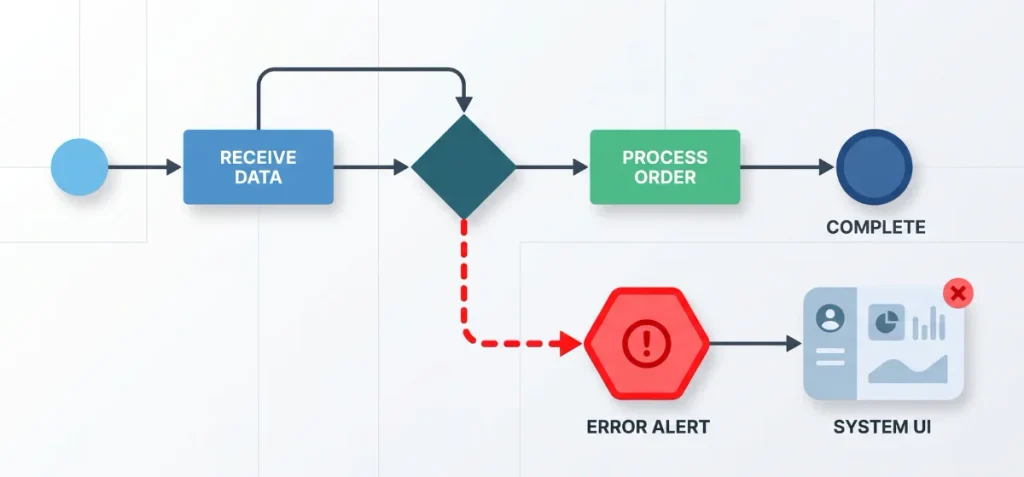
Sidekick interprets plain language, but it cannot guess your store intentions. An AI draft often needs manual correction before it is safe to run.
Review your generated workflows for these common points of failure:
- Incorrect condition operators. Sidekick can mix up “greater than” with “greater than or equal to.” A single wrong operator includes or excludes orders by mistake.
- Missing data fields. Actions fail when required variables are not present. An email action fails if the trigger event does not supply the customer email field.
- Disconnected app connectors. Third-party steps for Slack or Google Sheets require installed connector apps. Sidekick creates the visual block, but the task stalls if the app lacks authorization.
- Missing loop steps. Workflows that check multiple items need a “For each” loop block. Sidekick sometimes skips this loop and checks only the first item in an order list.
- Unintended logic branches. Complex prompts with multiple rules can create wrong True and False branches. A misplaced branch sends notifications to the wrong staff inbox.
The Shopify Flow documentation warns that users must verify all logic steps before activation. Check every rule block in the visual editor to prevent store errors.
How to Test a Shopify Flow AI Workflow Before Activating It
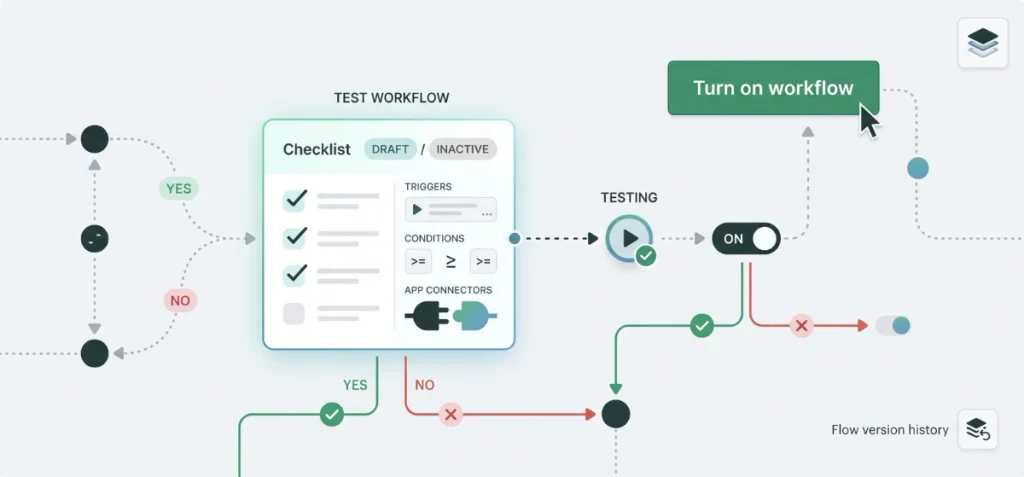
Shopify marks every AI workflow as inactive when Sidekick creates it. Testing the logic before you turn it on keeps bad automation away from live customers.
Follow this verification checklist before activation:
- Inspect the trigger event. Confirm the workflow starts on the exact event you want, such as order payment rather than initial cart checkout.
- Verify condition operators. Check that comparisons use the right boundary. Ensure the block uses greater than or equal to instead of greater than if you want to include threshold amounts.
- Confirm data availability. Make sure the trigger supplies every variable that downstream email and notification templates need.
- Verify app connectors. Confirm your team’s Slack or third-party connections show an active, authenticated status.
- Run a positive manual test. Place a test order that meets your condition criteria. Verify that the correct tags, holds, or staff alerts fire.
- Run a negative manual test. Place a test order that falls outside your condition criteria. Verify that the workflow ends without taking action.
- Activate the workflow manually. Click “Turn on workflow” in the top right corner of the Flow editor.
The official Shopify Flow testing documentation outlines how to review run logs. If an update produces unexpected results, you can use Flow version history to restore a previous workflow draft.
When Shopify Flow AI Needs Manual Refinement
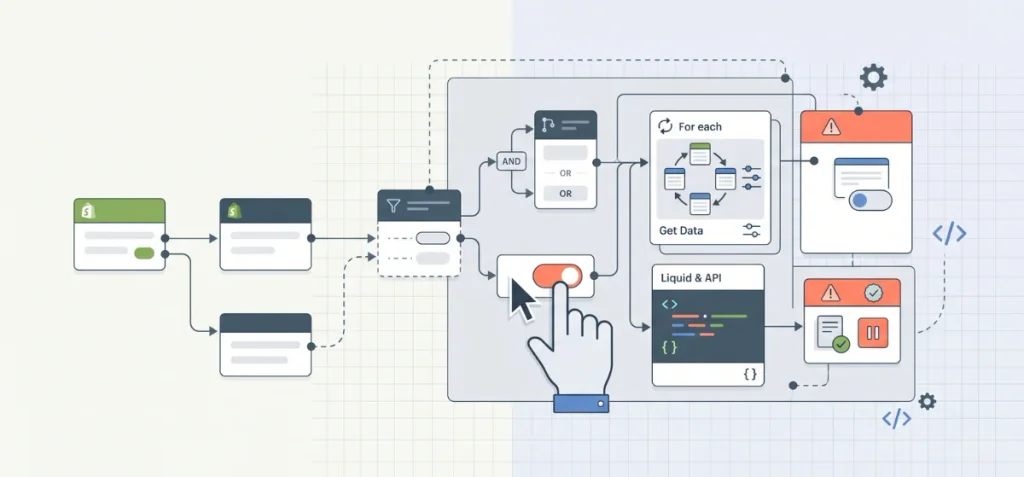
Sidekick is an efficient drafting helper, but it can’t validate merchant strategy. Complex operational logic still requires manual editing inside the visual canvas.
Review and adjust your workflows manually in these scenarios:
- Nested logic branches. Workflows that require multiple AND and OR conditions need manual structure checks. Sidekick often flattens these branches, which leads to misrouted tasks.
- Batch record processing. Scheduled reports that inspect full catalog inventories require a Get data step followed by a For each loop.
You must configure these loop blocks manually to prevent truncated data runs.
- Liquid code formatting. Custom notification templates often use Liquid code variables to format dates, currency symbols, and line item tables.
Sidekick writes basic text templates, so you must input advanced Liquid syntax by hand.
- Custom app API calls. Webhook payloads and custom HTTP request blocks require precise endpoint URLs and authentication headers that Sidekick cannot infer.
- High-stakes fulfillment actions. Automation that holds inventory, cancels orders, or impacts vendor contracts needs line-by-line verification from your operations team before activation.
Shopify Flow AI Assistant vs. Regular Sidekick Prompts

Sidekick has two distinct roles inside your Shopify admin. You can use it as a general store helper. You can also use it to build automated logic inside Shopify Flow.
| Feature Area | Regular Sidekick Prompts | Sidekick for Shopify Flow |
| Workspace | Admin dashboard, analytics, and products | Inside the Shopify Flow app editor |
| Primary Output | Answers, copy drafts, and summary reports | Visual workflow steps (triggers, rules, tasks) |
| Execution State | Instant answer in the chat panel | Inactive workflow draft requiring manual activation |
| Logic Structure | Plain conversational text | Strict trigger, condition, and action components |
| Data Dependencies | Store metrics and general admin settings | Flow event data, connector apps, and variables |
Regular Sidekick prompts help you write product descriptions. They also summarize recent store sales trends.
Sidekick in Shopify Flow turns your plain text directly into backend automation steps. This distinction helps you write the right prompt in the right place.
Does Shopify Flow AI Help With Google AI Overviews?
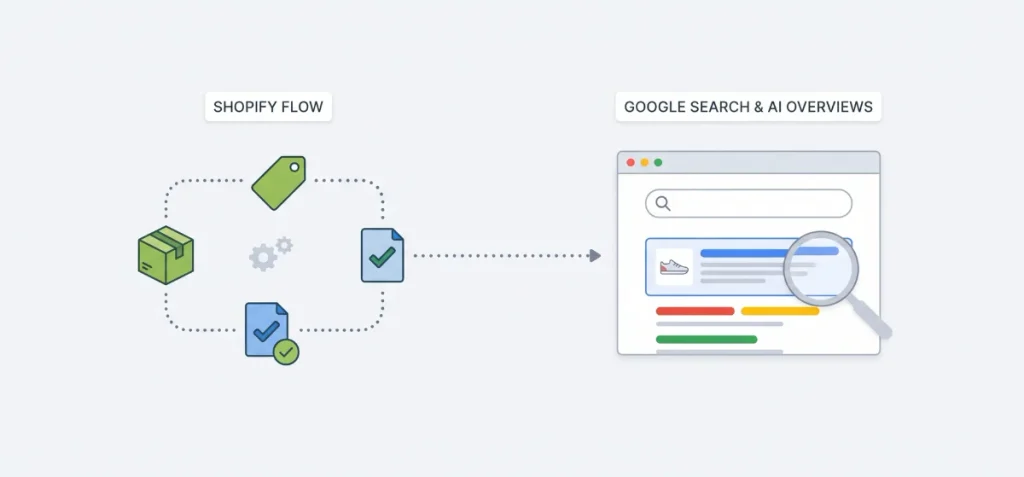
Shopify Flow manages backend store operations. It doesn’t directly optimize your site for Google AI Overviews.
Google uses core search systems to build AI Overviews. Google search documents state that there is no special markup or code for AI features.
Foundational SEO remains the real path to search visibility. Clear product data, clean site architecture, and fast pages help Google crawl your store.
Automations in Flow support your store operations behind the scenes. They update inventory status and tag products accurately. These steps keep your product pages accurate for shoppers and search bots.
If you want your products to appear in generative search results, review our complete guide on how to get Shopify product pages in Google AI Overviews.
It covers the technical steps that search engines use to pull product details into generative summaries.
Wrapping Up
This Shopify Flow AI Assistant Prompt Guide gives you the direct tools and helpful instructions to automate manual store operations in minutes.
For your information, clear inputs, precise numeric thresholds, and defined tags help Sidekick build reliable workflows without unexpected errors.
Always verify your trigger events, condition operators, and connector apps before turning on any automation.
Pair automated backend efficiency with sound catalog architecture to keep your Shopify store running smoothly as your order volume scales.
FAQs
Can ChatGPT Build Me a Shopify Store?
ChatGPT cannot build a whole Shopify store alone. It writes product copy, plans collections, and creates theme code snippets. You must set up accounts, domains, and payment gateways yourself.
What is the Best AI Tool for Shopify?
Shopify Sidekick and Shopify Magic are the best free tools for store data and copy. Atlas builds complete store pages from prompts. Tidio manages customer chat, while Klaviyo AI runs personalized email and SMS marketing campaigns.
How to Maximize AI Prompts?
Give the AI a clear role, real context, and strict limits. Add sample text to guide the output tone. State the exact format you want, such as tables or lists. Refine the output with quick follow-up feedback.