To add keywords to a Shopify website, first assign a primary keyword to the page based on search intent. Then add it naturally to the page title, H1, meta description, URL where appropriate, body content, product or collection copy, and descriptive image ALT text. Do not use Google’s unsupported meta keywords tag.
Many Shopify store owners struggle to get visitors from search engines. The reason is that they don’t know how to add keywords to Shopify website pages.
They build websites, add products, write product copy, and launch the stores but get no organic traffic. You don’t want to be in the same situation.
Instead, you want to learn powerful strategies to add keywords. For that, you may keep reading this step-by-step guide. It breaks down exact keyword placement steps for your homepage, products, collections, and blog posts.
Where to Add Keywords in Shopify
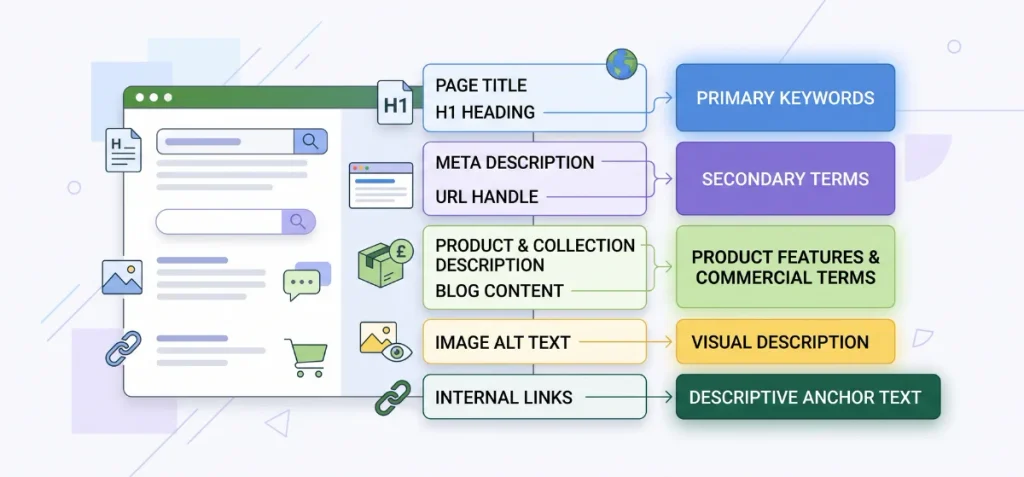
Shopify provides designated fields across store settings and content editors for keyword placement. Official Shopify Help Center documentation and Google Search Central guidelines emphasize placing target terms naturally across titles, headers, descriptions, and visual media.
The reference table below maps each Shopify admin location to its recommended keyword target:
| Shopify Location | What to Add | Best Keyword Type |
| Page Title | Primary keyword near the beginning | Primary |
| H1 Heading | Main topic, product name, or category | Primary |
| Meta Description | Primary term + supporting secondary term | Secondary / LSI |
| URL Handle | Short, readable phrase with hyphens | Primary |
| Product Description | Primary term + natural semantic terms | Long-tail / Product features |
| Collection Description | Category name + related commercial terms | Commercial |
| Blog Content | Primary topic + related buyer questions | Informational |
| Image ALT Text | Clear description of visual content | Relevant / Semantic |
| Internal Links | Descriptive anchor text pointing to key pages | Supporting terms |
Correctly Research Keywords Before Adding Them
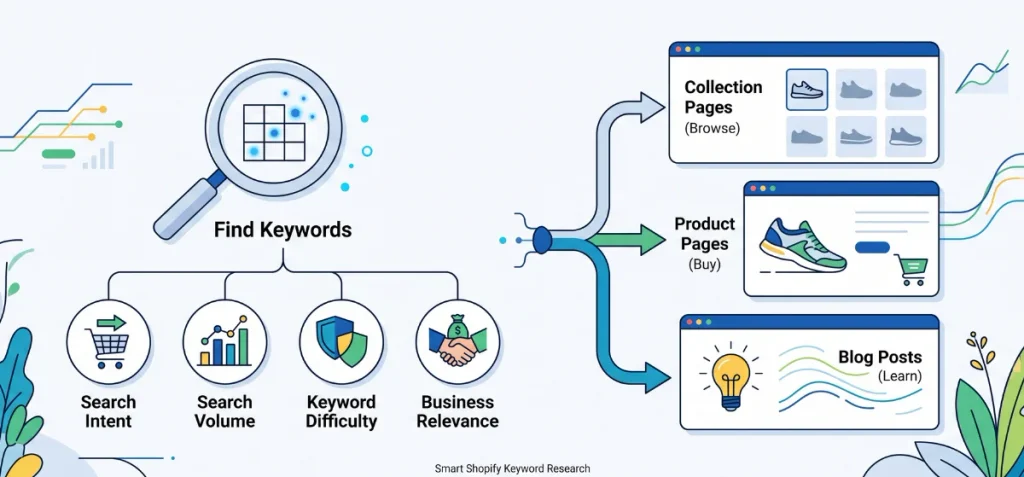
Smart keyword placement starts with proper research. You need data before you type words into Shopify fields.
Find Your Primary and Secondary Keywords
Start with a simple seed keyword that describes your core offer. Expand that root term into specific long-tail keywords and related semantic terms that real shoppers type into search bars.
Evaluate every keyword opportunity against four essential metrics:
- Search Intent: Does the user want to buy, browse, or learn?
- Search Volume: How many people search for this exact term each month?
- Keyword Difficulty: How hard will it be to outrank current competitors?
- Business Relevance: Does this term attract buyers who actually need your products?
Official Shopify SEO guidance suggests using dedicated research tools to uncover strong search terms.
You can use free platforms like Google Search Console and Google Keyword Planner or premium suites like Semrush and Ahrefs to find proven queries.
You can also analyze your content density with our Shopify SEO word counter to keep your keyword frequency natural.
Match Keywords to the Right Shopify Page
Search engines reward websites that send searchers to the right page format. Match each keyword to the correct Shopify page type based on intent:
- Commercial Intent (Collection Pages): Shoppers want to browse a catalog. Example: “women’s running shoes” → Collection Page
- Transactional Intent (Product Pages): Shoppers know the exact item they want to buy. Example: “Nike Air Zoom Pegasus 41 women’s” → Product Page
- Informational Intent (Blog Posts): Shoppers want advice or answers before buying. Example: “how to choose running shoes” → Blog Post
How to Add Keywords to Your Shopify Homepage
Your homepage represents your entire brand in search results. You need to tell search engines and visitors what your store sells right away.
Add the Keyword to the Homepage Title
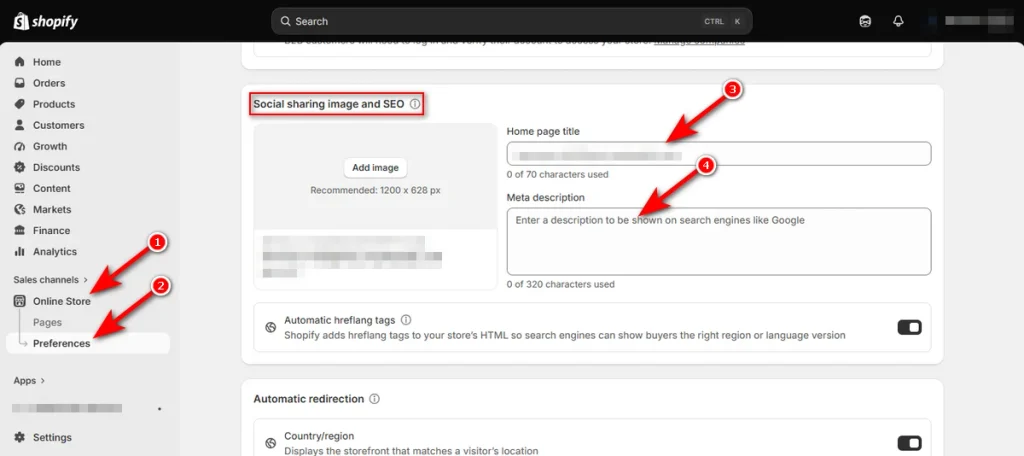
Shopify manages your homepage title through the store preferences menu. You can set this up in four quick steps:
- Open your Shopify Admin.
- Click “Online Store” under Sales channels.
- Select ‘Preferences.’
- Find the “Social sharing image and SEO” section and enter your text into the “Home page title” field.
Keep your title under 70 characters. Place your primary keyword at the front, followed by your store name.
Here are real homepage title Shopify examples to show the difference:
- Weak Example: Home | ABC Footwear
- Strong Example: Women’s Running Shoes & Trail Sneakers | ABC Footwear
The weak example wastes valuable space on the word ‘Home.’ The strong version immediately targets high-intent search terms.
Write a Keyword-Focused Homepage Meta Description
Enter your summary into the “Meta description” field right below the title field. Keep this copy under 160 characters so Google displays it without cuts.
Here is a practical Shopify meta description example:
“Shop durable women’s running shoes, trail sneakers, and marathon trainers at ABC Footwear. Enjoy free shipping and easy 30-day returns on all orders.”
This summary includes primary search terms, secondary variations, and a clear reason for shoppers to click your link.
How to Add Keywords to Shopify Product Pages
Product pages generate your most valuable transactional traffic. Shoppers who find these pages usually have their credit cards ready.
Product Title and H1
Your product title serves two purposes. Shopify automatically converts your product title into the page H1 heading in most themes.
Create a title that appeals to buyers while including your primary search term. Avoid vague names like “The Explorer.”
Instead, use descriptive names like “The Explorer: Waterproof Leather Crossbody Bag.” This gives search engines clear context and reassures the buyer immediately.
Search Engine Listing
Shopify lets you customize how your product appears in search results without changing the visible storefront text.
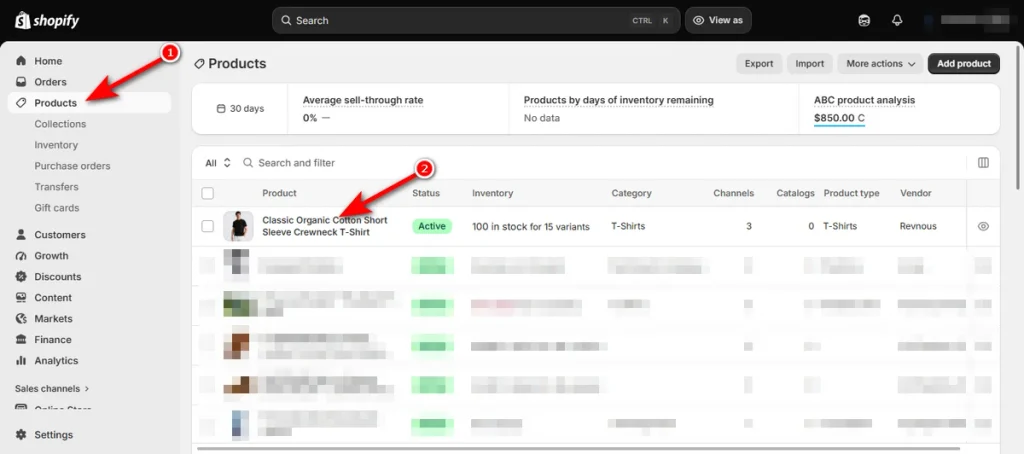
Follow this exact path to update your product SEO:
- Open your Shopify Admin.
- Click ‘Products’ and select the specific item.
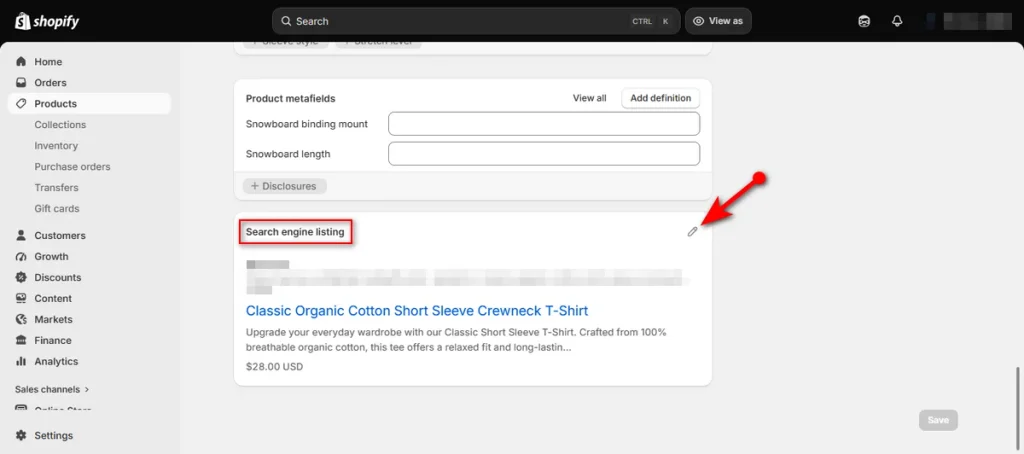
- Scroll down to the bottom of the page to find the “Search engine listing” card.
- Click the edit pencil icon to expand the fields.
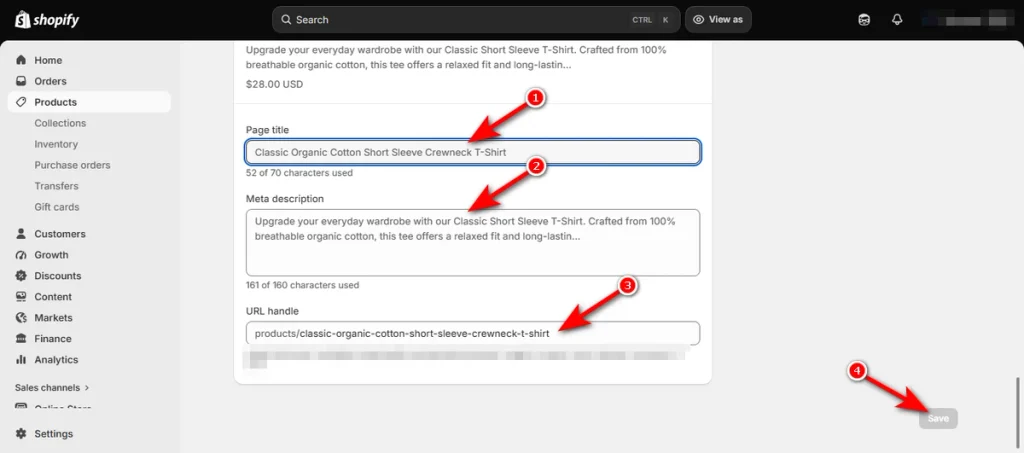
Now update the three core elements:
- Page Title: Enter a clear, keyword-rich title under 70 characters.
- Meta Description: Write an enticing summary with your primary and secondary terms under 160 characters.
- URL Handle: Keep the URL slug short, clean, and separated by hyphens (example: /products/leather-crossbody-bag).
Product Description
Write original copy that answers buyer questions and naturally includes your target phrases. Official Shopify SEO guidelines warn store owners against copying manufacturer descriptions because search engines filter out duplicate content.
Place your primary keyword once in the opening lines. Distribute semantic and secondary terms naturally throughout your feature bullets, dimensions, and materials.
- Primary Keyword: leather crossbody bag
- Secondary & Semantic Terms: women’s crossbody bag, adjustable strap, genuine leather, zippered pockets, everyday shoulder purse
Avoid forcing exact-match phrases into every paragraph. Write for real human shoppers first.
If you want to scale this process across your entire catalog, professional Shopify SEO services can help you build high-converting, keyword-optimized product copy.
Product Image ALT Text
Image optimization is another vital way to learn how to add SEO to Shopify website products. Search engines cannot see your product photos, but they read your image alternative text (ALT text) to understand the visual context.
Both Shopify documentation and Google image guidelines stress that ALT text must describe the image accurately first for screen readers and accessibility.
- Bad ALT Text: crossbody-bag-best-cheap-bag-online (keyword stuffing)
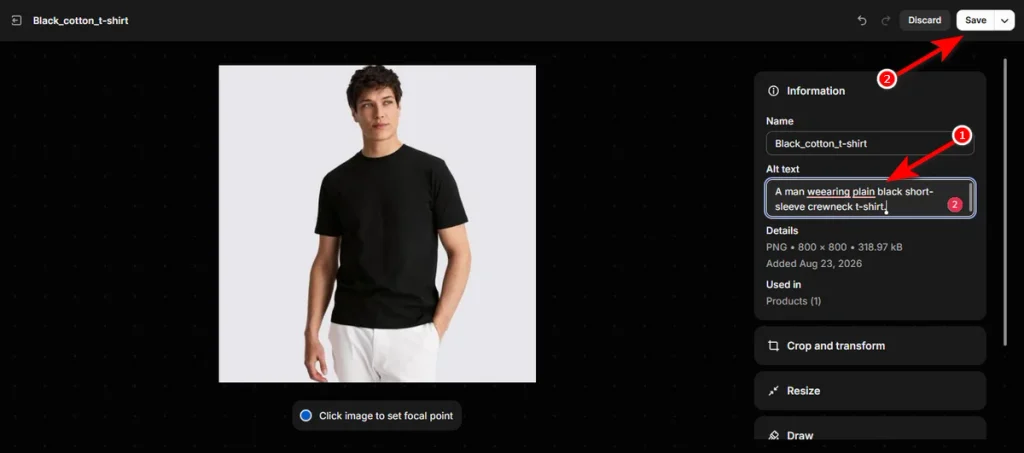
- Good ALT Text: Woman wearing brown leather crossbody bag with adjustable strap (descriptive and natural)
Here’s how to add ALT text to an image. First, open a product in the product editor.
Then, head to the ‘Media’ section and click on your product image in the Shopify product editor.
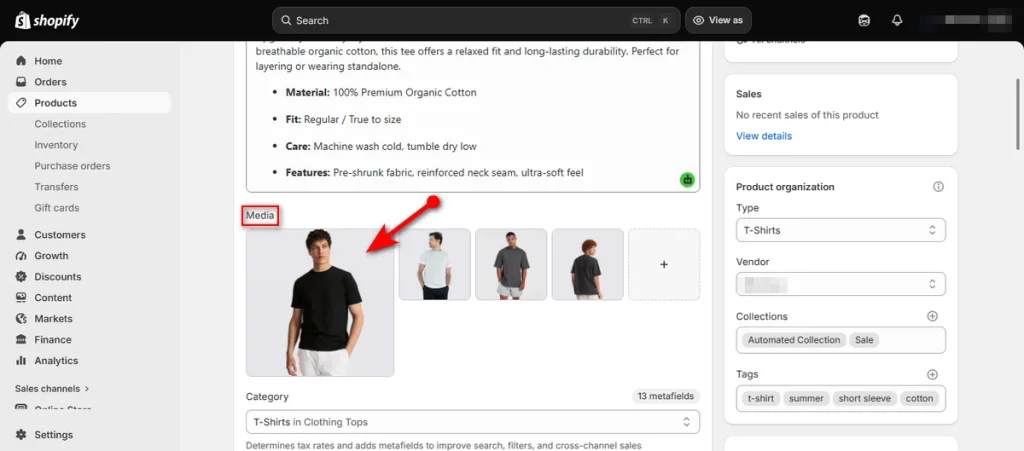
Now, write an ALT text in the “Alt text” box and hit the ‘Save’ button. That’s it.
How to Add Keywords to Shopify Collection Pages
Collection pages often rank higher than individual product pages for broad commercial searches. Most merchants leave collection descriptions blank, which creates an easy opportunity to outrank competitors.
Collection Title and H1
Keep your collection title direct and aligned with broad category intent. Shopify uses this title as the main H1 heading of the page.
Use clear category names like “Women’s Running Shoes” instead of creative brand phrases like “Velocity Gear.” Search engines need explicit category context to match user intent.
Search Engine Listing for Collections
Navigate to Products → Collections, select your category, and scroll down to the “Search engine listing” section at the bottom.
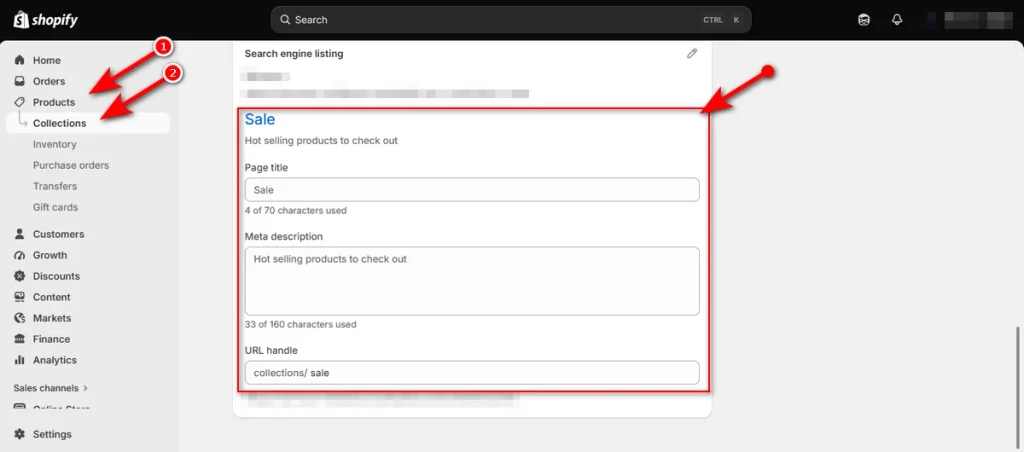
- SEO Title: Write a concise title under 70 characters (example: Women’s Running Shoes | Road & Trail Footwear).
- Meta Description: Write a benefit-driven summary under 160 characters (example: Discover comfortable women’s running shoes for trail and road workouts. Shop cushioned trainers with free standard shipping on orders over $50.).
- URL Handle: Keep the URL slug clean and descriptive (example: /collections/womens-running-shoes).
Collection Description and Internal Links
Add 100 to 200 words of helpful copy above or below your product grid. This gives search engines textual context without pushing products out of view.
- Primary Keyword: women’s running shoes
- Secondary Terms: cushioned running shoes, lightweight sneakers, breathable running footwear
Use descriptive anchor text within this description to link internally to related sub-collections or top-selling models. For example, link phrases like “women’s trail running shoes” directly to your specialized trail collection.
Avoid Keyword Cannibalization
Keyword cannibalization happens when two or more collection pages target the same primary search term. Google gets confused about which page to rank, which often drops the positions of both URLs.
Map unique keywords to distinct collections to prevent this issue:
- Main Category: women’s running shoes (/collections/womens-running-shoes)
- Sub-Category A: women’s trail running shoes (/collections/womens-trail-running-shoes)
- Sub-Category B: women’s road running shoes (/collections/womens-road-running-shoes)
Each page must focus on its unique intent, distinct title tags, and tailored product grids.
How to Add Keywords to Shopify Blog Posts and Pages
Shopify turns your blog article title into the main H1 heading on the live page. Include your primary informational keyword near the start of the title to give search engines instant clarity.
- Example: How to Choose Running Shoes: Complete Fit Guide for Beginners
Introduction and Subheadings
Hook the reader immediately. Place your primary keyword once within the first 100 words of the text.
Break the article into clear sections using H2 and H3 subheadings. Use these headings to answer secondary questions and incorporate related long-tail variations naturally.
Body Copy and Image ALT Text
Write direct, practical answers that solve the reader’s problem. Avoid stuffing the target keyword into every paragraph.
Every image you add to the post needs descriptive ALT text. State clearly what the visual displays so search crawlers and screen readers can understand the graphic.
Strategic Internal Links
Informational blog posts work best when they support your revenue pages. Add internal links with descriptive anchor text that point readers toward your relevant collection and product pages.
For example, a blog post about running can link naturally to a cushioned road sneakers collection.
Store owners managing large multi-brand catalogs can check out our comprehensive Shopify Plus SEO guide to structure their internal links and content clusters at scale.
Search Engine Listing
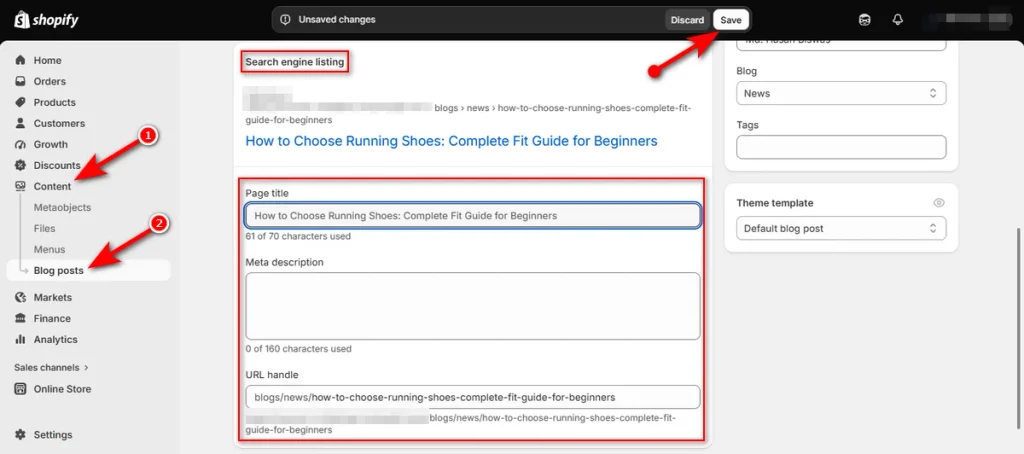
Navigate to the bottom of your blog post editor to adjust the search snippet:
- Page Title: Keep the title under 70 characters with your core informational term.
- Meta Description: Write a clear 150-character summary that tells searchers what they will learn.
- URL Handle: Keep the slug short and clean (example: /blogs/news/how-to-choose-running-shoes).
Should You Add Meta Keywords to Shopify?
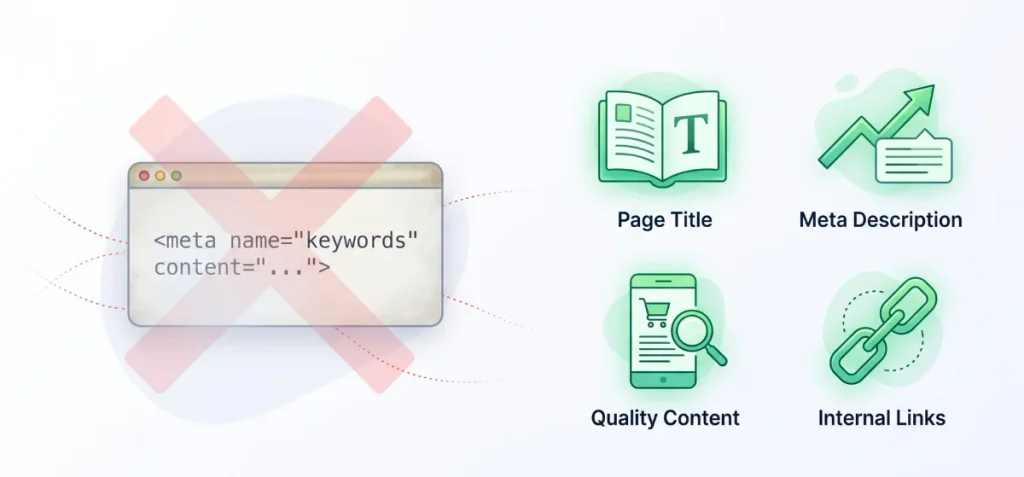
No. You do not need to add meta keywords to Shopify for Google SEO.
Many beginners search for tutorials on how to add meta keywords in Shopify, but spending time on this practice yields zero ranking benefits today.
What Are Shopify Meta Keywords?
Meta keywords refer to an old HTML tag placed inside a website header: <meta name=”keywords” content=”…”>.
Decades ago, early search engines used this tag to understand page topics. Webmasters abused the tag by packing hundreds of hidden terms into the code. Search engines quickly stopped trusting it.
Does Google Use Meta Keywords?
No. Official Google Search Central documentation states clearly that Google completely ignores the meta keywords tag for indexing and ranking web pages. Major search engines like Bing also do not use the tag for organic placement.
Shopify deliberately excludes a default meta keywords field from its theme settings because modern search algorithms do not need it. You should not edit theme Liquid files or install third-party scripts to force old keyword tags into your store header.
What Should You Optimize Instead?
Spend your time on elements that search engines actually read and evaluate:
- Page Titles: Write clear, keyword-first titles.
- H1 Headings: Align your primary heading with search intent.
- High-Quality Content: Write helpful product descriptions and collection copy.
- Product and Category Relevance: Match search intent to the right page type.
- Meta Descriptions: Write compelling snippets to boost click-through rates.
- Image ALT Text: Describe your images clearly for accessibility and visual search.
- Internal Links: Connect relevant pages with clear anchor text.
- Technical SEO: Keep site navigation clean, maintain fast load speeds, and fix broken links.
How to Add a Meta Tag to Shopify for Facebook
Many store owners confuse search engine metadata with social media metadata. They serve two entirely different purposes.
Search metadata tells Google how to display your page in search results. Social metadata (Open Graph tags) and Facebook verification tags control how your links appear on social feeds and confirm domain ownership inside Meta Business Suite.
Facebook meta tags do not work as Google ranking signals. They do not help you rank higher for search keywords, but they remain essential for paid social ads and brand security.
Add Facebook Domain Verification Tag to Shopify
Follow these steps to insert a Facebook verification meta tag into your store code:
- Copy your verification meta tag from “Meta Business Suite” (found under Brand Safety → Domains).
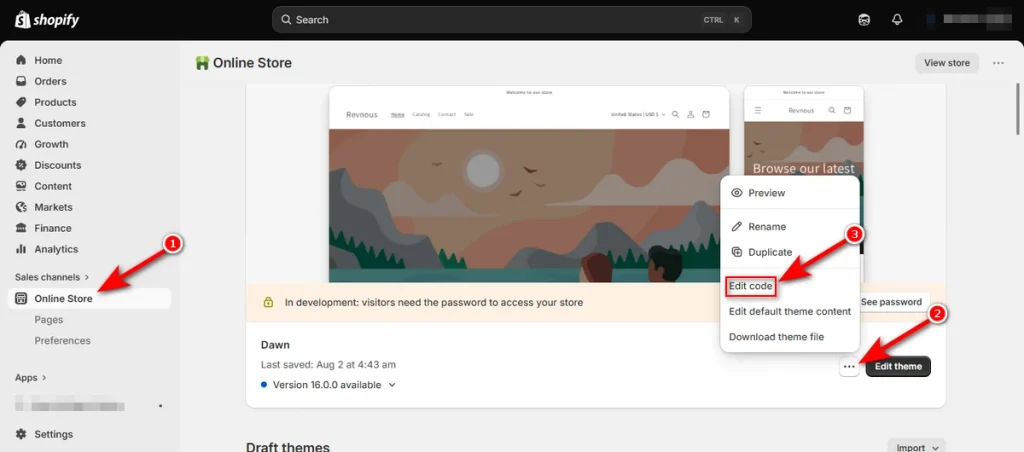
- Open your Shopify Admin and go to Online Store → Themes.
- Click the “three dots (…)” next to your active theme and select “Edit code.”
- Click on the “theme.liquid” file located inside the ‘Layout’ directory.
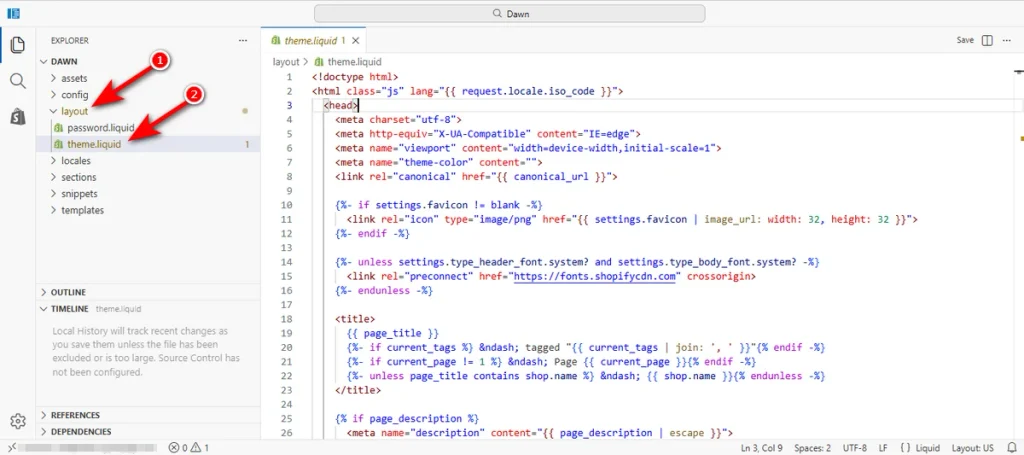
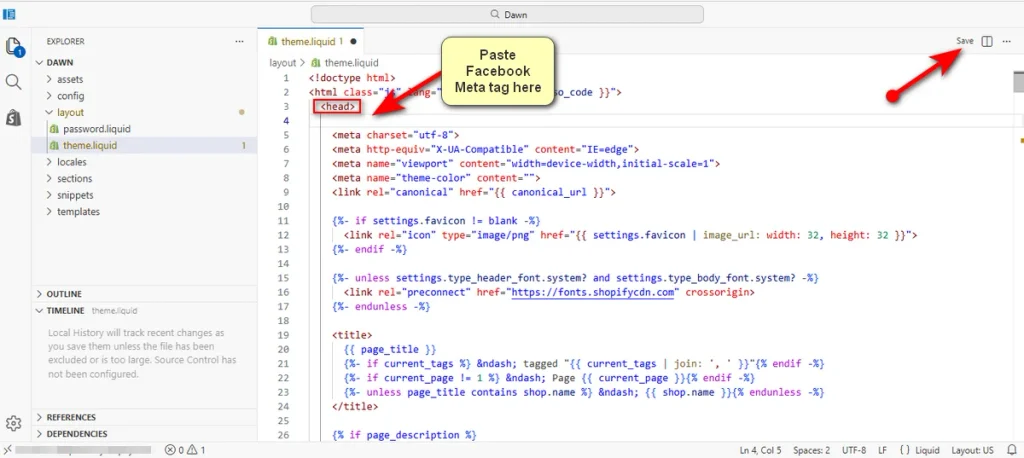
- Locate the opening “<head>” tag near the top of the code editor.
- Paste your copied Facebook meta tag code on a new line right below the “<head>” tag.
- Click ‘Save’ in the top right corner.
- Return to Meta Business Suite and click “Verify Domain.”
How to Use Keywords Without Keyword Stuffing
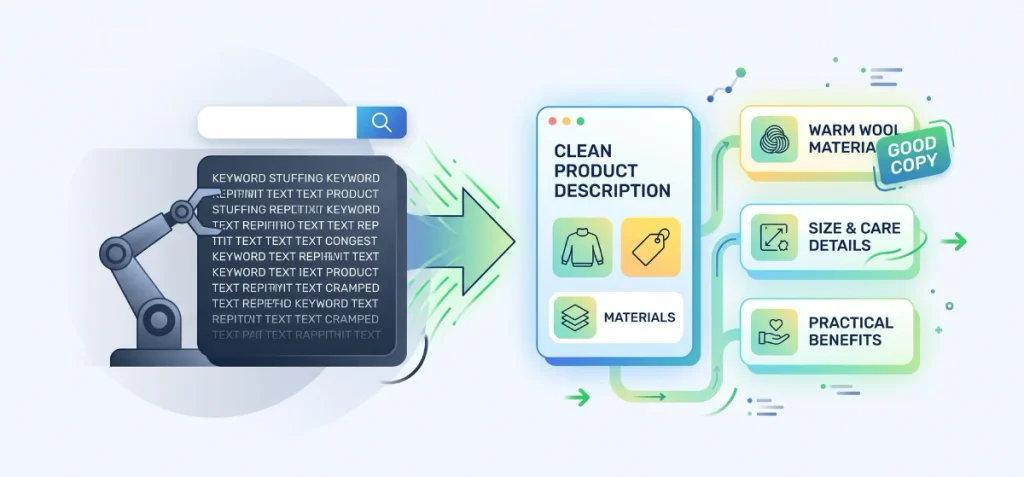
Search engines penalize pages that force keywords into unnatural sentences. Official Shopify SEO documentation recommends writing clear, readable copy instead of stuffing product listings with repetitive keyword lists.
Follow these simple rules to keep your content natural:
- Avoid constant repetition: Do not repeat the exact match phrase in every sentence.
- Use synonyms and variations: Swap your primary term with related phrases, product attributes, and materials.
- Focus on real use cases: Explain how customers use the product, its dimensions, and practical benefits.
- Write for human shoppers first: Good copy answers customer questions and encourages sales.
- Prevent thin doorway pages: Never create new pages just to target slight keyword variations.
How to Check Whether Your Shopify Keywords Are Working
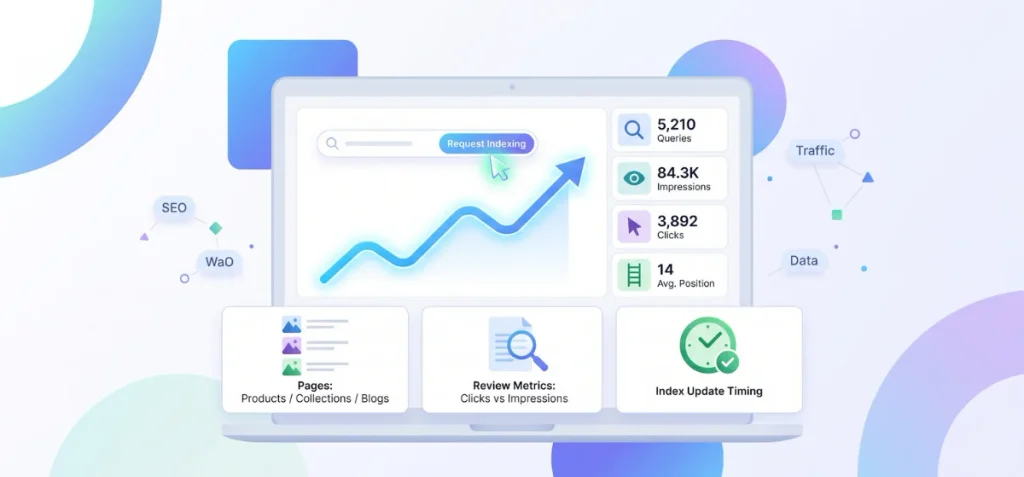
Tracking your performance shows you which optimizations bring real visitors and which need more work. You do not need to guess if your new keywords rank on Google.
Use Google Search Console
Google Search Console provides direct data from Google Search. Open the Performance (or Search results) report to track five essential metrics:
- Queries: The exact search terms people type to see your store.
- Impressions: How many times your link appeared in search results.
- Clicks: How many users clicked your link to visit your store.
- Average Position: Where your page ranks on search results pages for specific terms.
- Pages: Which specific product, collection, or blog URLs generate your search traffic.
Review these metrics together. For instance, high impressions paired with low clicks usually means you need to write a more enticing title tag or meta description to earn higher click-through rates.
Check Indexing After Major Edits
New text edits in your Shopify admin do not update in Google Search right away.
Official Shopify documentation notes that search engines can take several days or even weeks to recrawl and reindex updated pages.
If you make significant updates to a high-priority product or collection page, open Google Search Console, paste your link into the “URL Inspection” bar at the top, and click “Request Indexing.” This invites Google’s crawlers to review your updated content sooner.
Shopify Keyword SEO Checklist
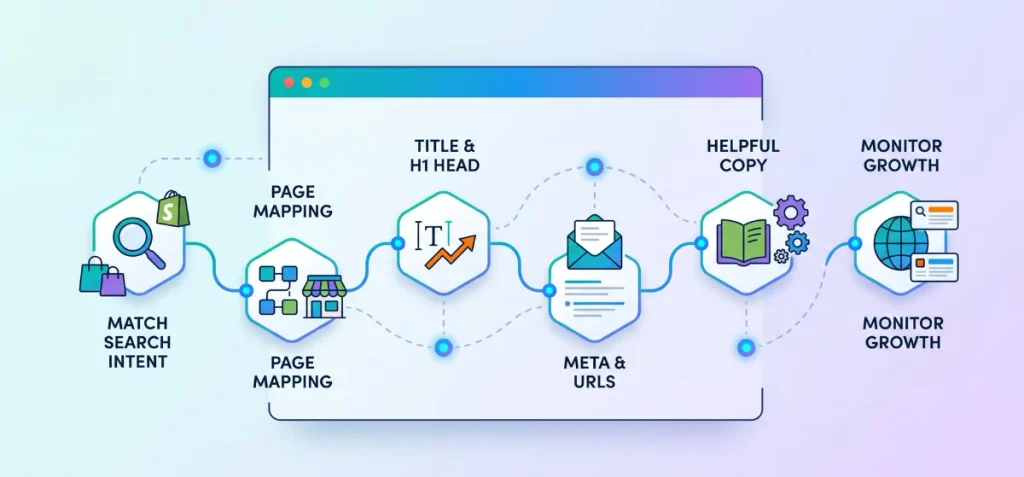
Use this quick checklist to review every Shopify page before you publish:
- Search Intent Match: Primary keyword matches what the buyer wants (buy, browse, or learn).
- Correct Page Mapping: Commercial terms point to collections, transactional terms to products, and informational terms to blogs.
- Unique SEO Title: Contains your primary keyword near the beginning and stays under 70 characters.
- Clear H1 Heading: Main page title uses relevant search terms and matches the page topic.
- Natural Meta Description: Enticing summary under 160 characters with primary and secondary terms.
- Clean URL Handle: Short, descriptive slug separated by hyphens with no extra numbers or dates.
- Helpful Body Copy: Original product or collection description that answers customer questions without fluff.
- Descriptive Image ALT Text: Clear description of the photo for screen readers and search crawlers.
- Strategic Internal Links: Descriptive anchor text linking related products, categories, or guides.
- Zero Keyword Stuffing: Natural sentence flow with synonyms and attributes instead of repetitive keyword lists.
- No Outdated Meta Keywords Tag: No broken Liquid code or third-party apps injecting old <meta name=”keywords”> tags.
- Google Search Console Configured: URL inspected and tracked for impressions, clicks, and average rank positions.
Wrapping Up
You now know how to add keywords to Shopify website pages the right way.
Keyword optimization takes time and consistency. You do not need complex code or outdated meta tags. Focus on clear titles, helpful descriptions, clean URLs, and descriptive alt text.
Start with your top five bestselling products today. Update their search listings and track your rankings in Search Console. Small adjustments create big traffic gains over time.
FAQs
Is SEO Still Worth It in 2026?
Yes. Modern SEO focuses on deep search intent, brand authority, and earning AI citations. High-intent buyers still click through to purchase real products.
Can I Do SEO by Myself?
Yes. Anyone can handle store SEO using free tools like Google Search Console. Focus on clear titles, helpful descriptions, clean URLs, and fast page speeds.
How to Do SEO as a Beginner?
Start with on-page basics. Research real buyer terms, add primary keywords to titles and H1 tags, write helpful descriptions, compress product images, and submit your sitemap.
How Do I Insert Keywords in a Website?
Add target phrases to your page title, H1 heading, meta description, and first paragraph. Then place supporting terms inside image ALT text and body copy naturally.